


Installing the TikTok Pixel and Setting Up Event Tracking


Installing the TikTok Pixel and Setting Up Event Tracking
To accurately capture all data, you need a properly set up tracking system. On TikTok, this is done using the TikTok Pixel.
The TikTok Pixel is a measurement tool that tracks the impact of your TikTok Ads on your website or online store. You add the TikTok Pixel JavaScript code to your website’s source code or integrate it via your existing Google Tag Manager. Similar to the Facebook Pixel, you can define various events such as Page View, Submit Form, Initiate Checkout, and Complete Payment. This allows you to digitally track the customer journey and monitor user activity, inquiries, and sales.
There are currently two methods for creating a TikTok Pixel: Standard Mode and Developer Mode.
- In Standard Mode, events are created directly within TikTok.
- In Developer Mode, events are added directly into the website code, allowing you to include additional values such as Content Value or Product ID for more precise tracking.
The data collected by the TikTok Pixel not only visualizes campaign performance but also serves as the basis for ad optimization, providing KPIs such as Conversion Rate and Return on Ad Spend. You can also create audiences based on the TikTok Pixel, such as previous website visitors. This enables strategic retargeting campaigns to reach and engage people who have already interacted with your business.
To create a TikTok Pixel:
- Log in to your TikTok Ads account at https://ads.tiktok.com/.
- Click on Assets > Events in the top menu.

Next, determine where you will implement the TikTok Pixel. You can track events directly in your app or on your website/online store.
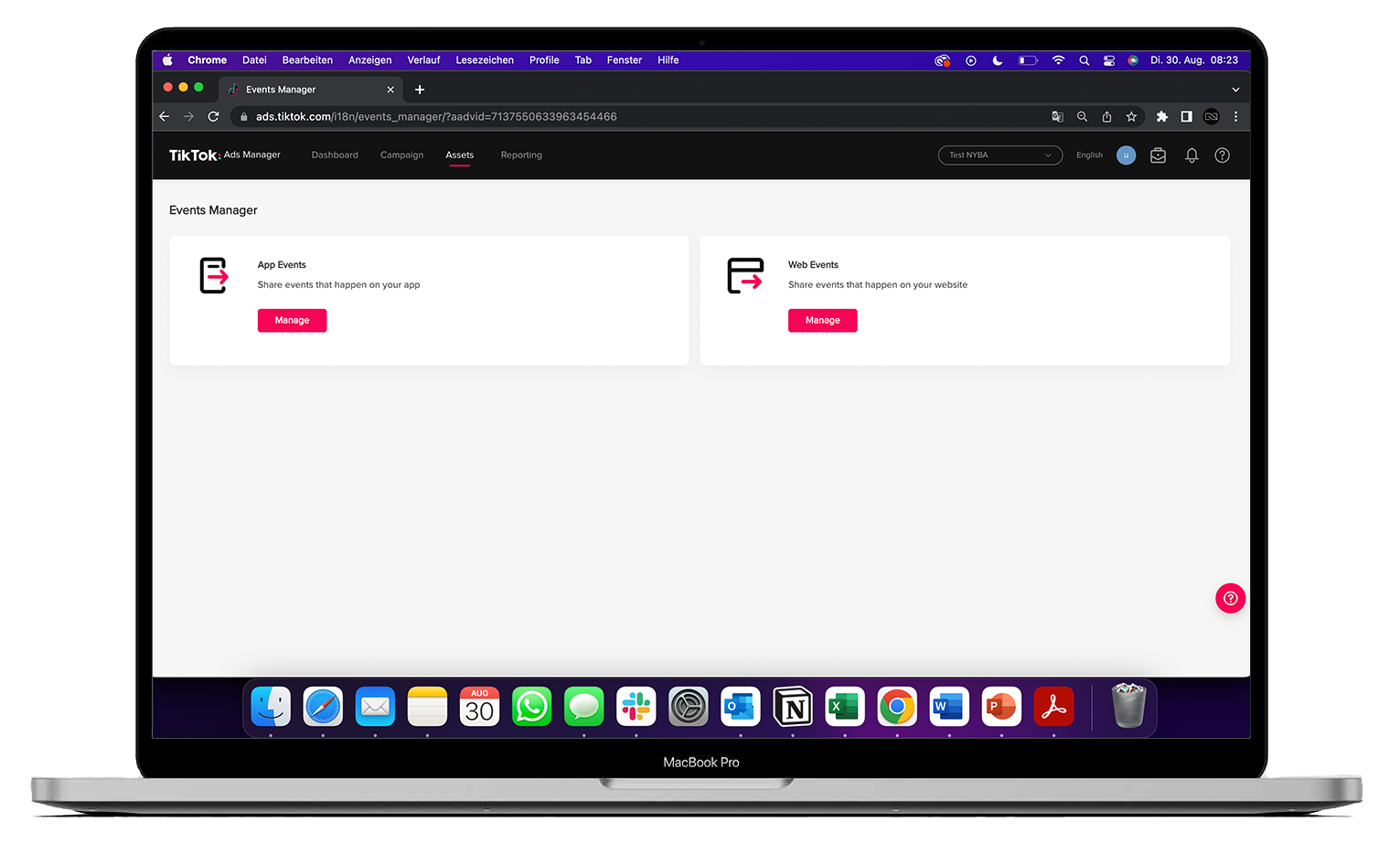
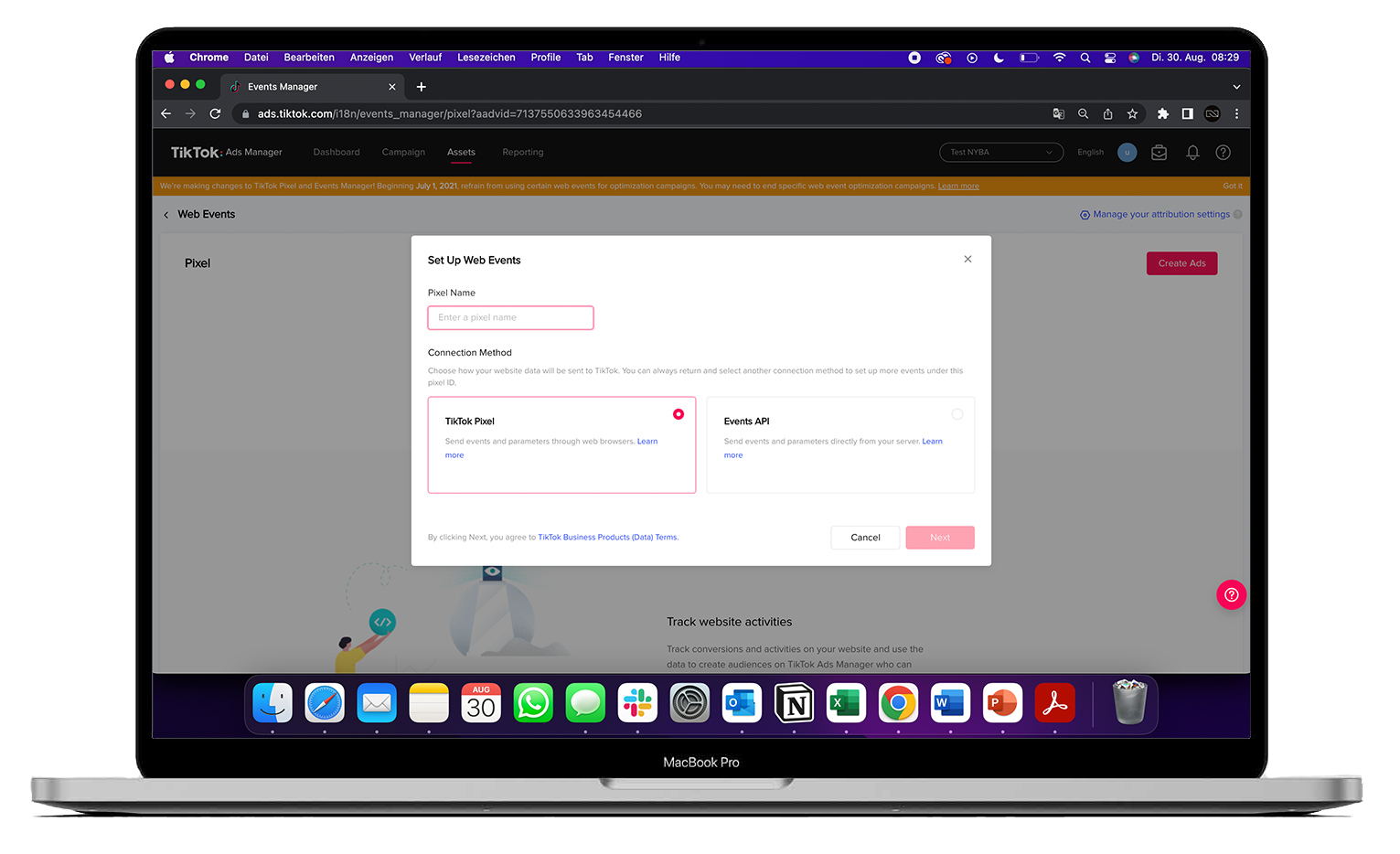
Click Create Pixel and give your TikTok Pixel a clear and unique name. You also choose whether events should be sent to the Pixel via your website or directly from your server.

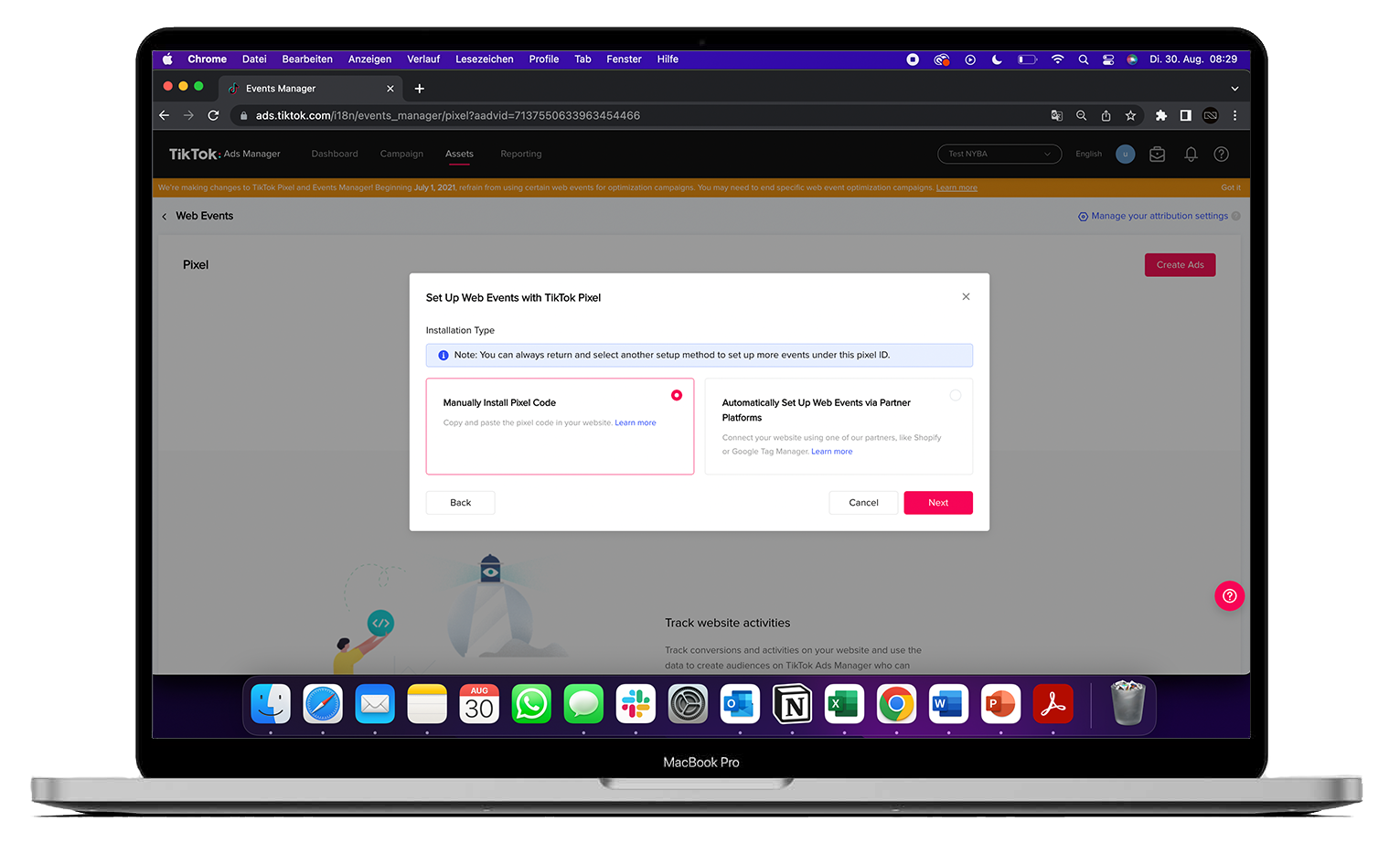
Afterwards, you can implement the Pixel code directly into your website’s code or integrate it via partner platforms such as Shopify or Google Tag Manager.
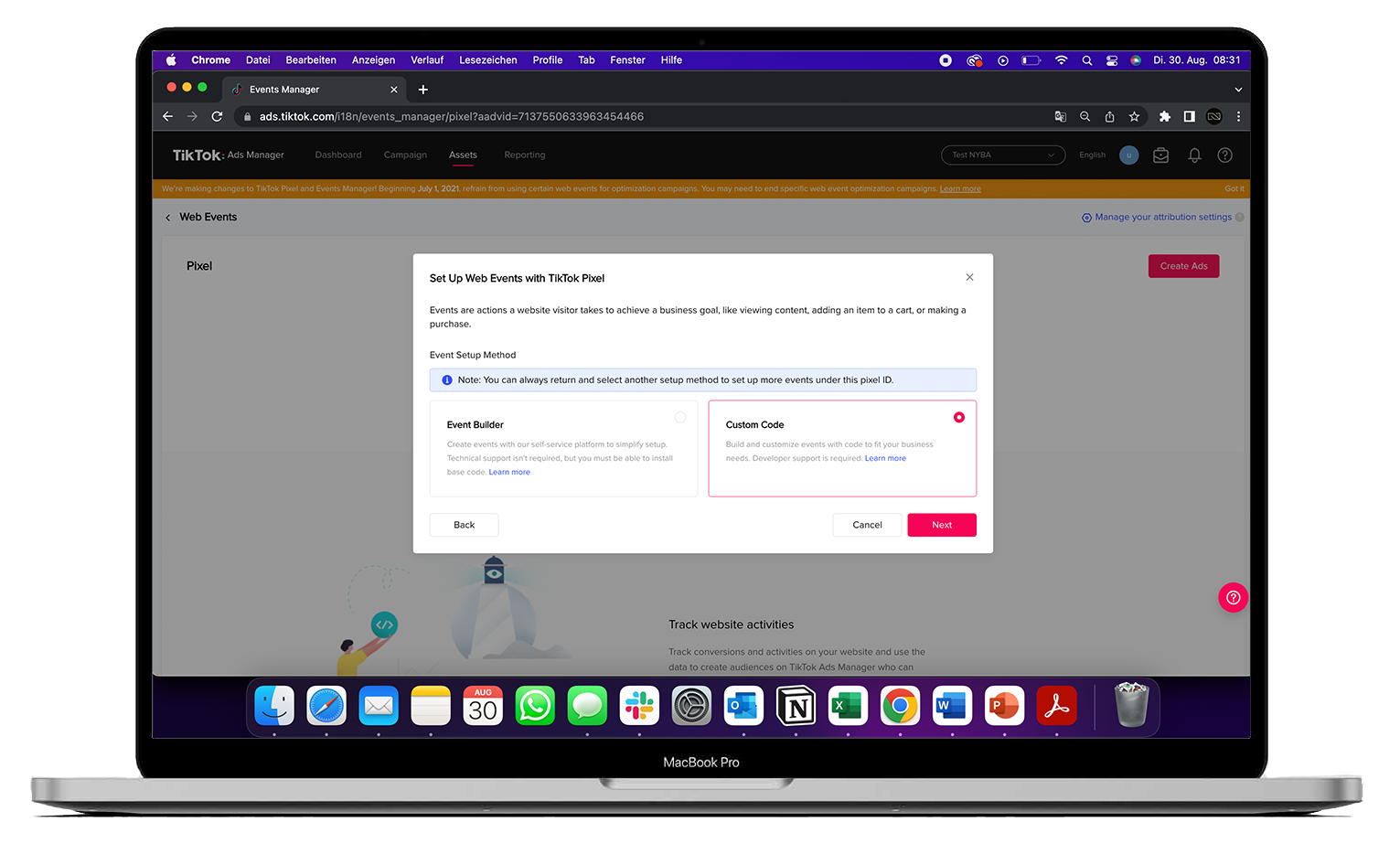
As mentioned earlier, in the final step, you can choose between Standard Mode and Developer Mode. Standard Mode has since been renamed to Event Builder, where you implement the Pixel code on your website and can then set up all events directly in the TikTok Ads Manager. In Developer Mode, now called Custom Code, you integrate events directly into your website’s code.
Once all settings are configured, you can copy the TikTok Pixel JavaScript code and insert it into your website’s source code.
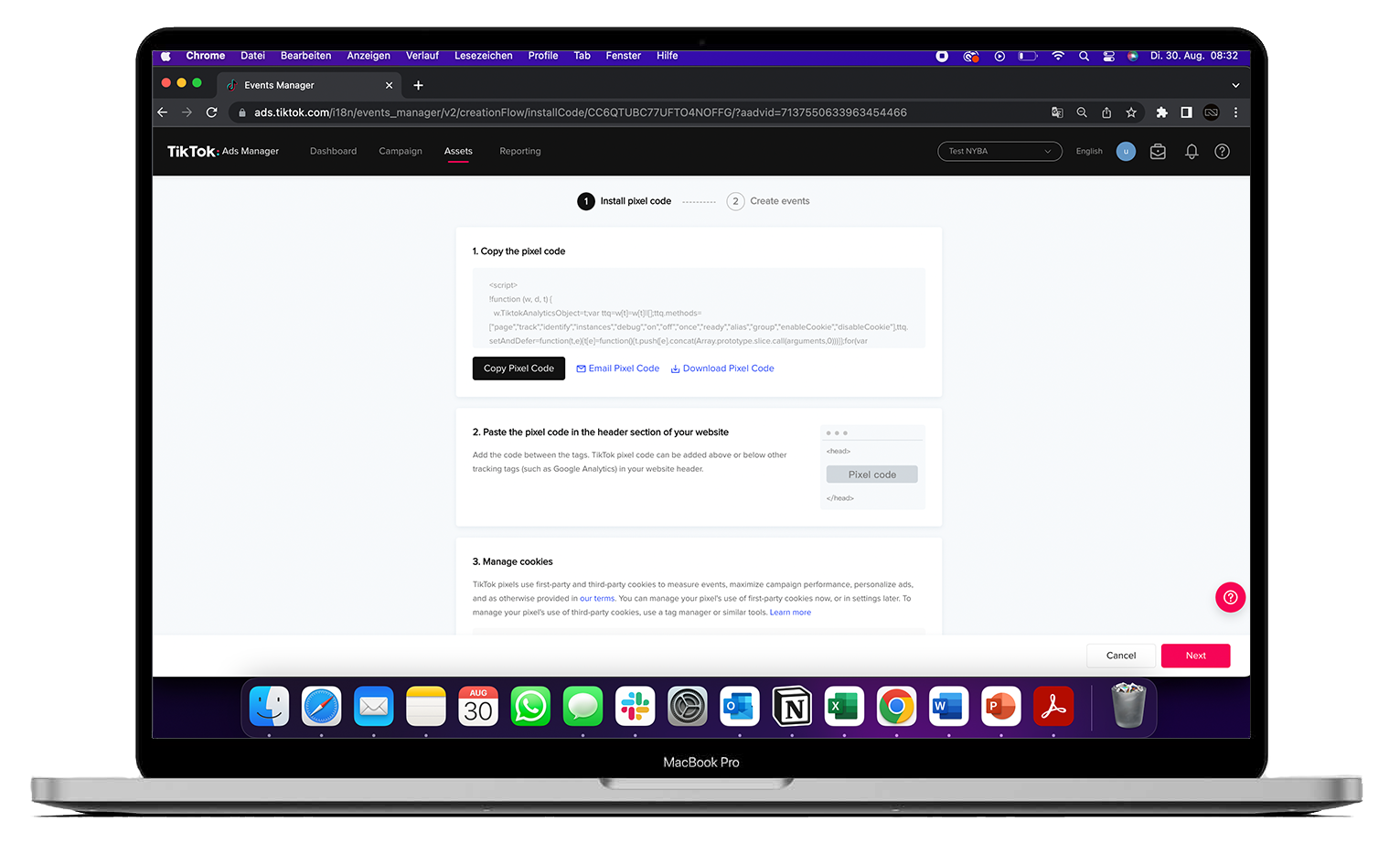
Use the TikTok Pixel Helper to verify that your TikTok Pixel has been successfully installed.
Real ChatGPT ads from NYBA campaigns, with results
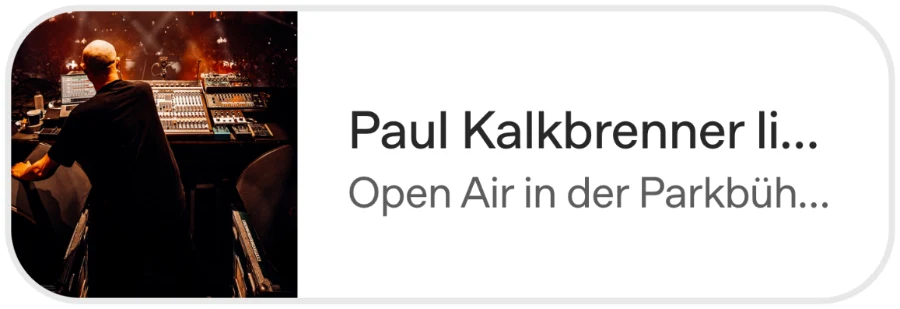
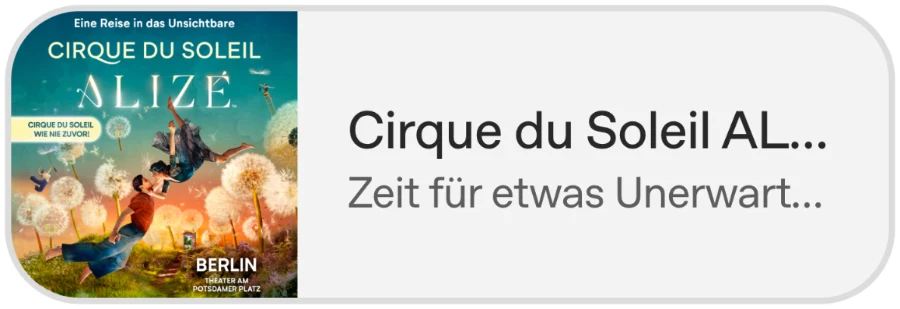
NYBA has been running ChatGPT ads for live events in Germany since the launch in August 2026. Two examples, shown the way they appear inside the ChatGPT answer, with their first results:
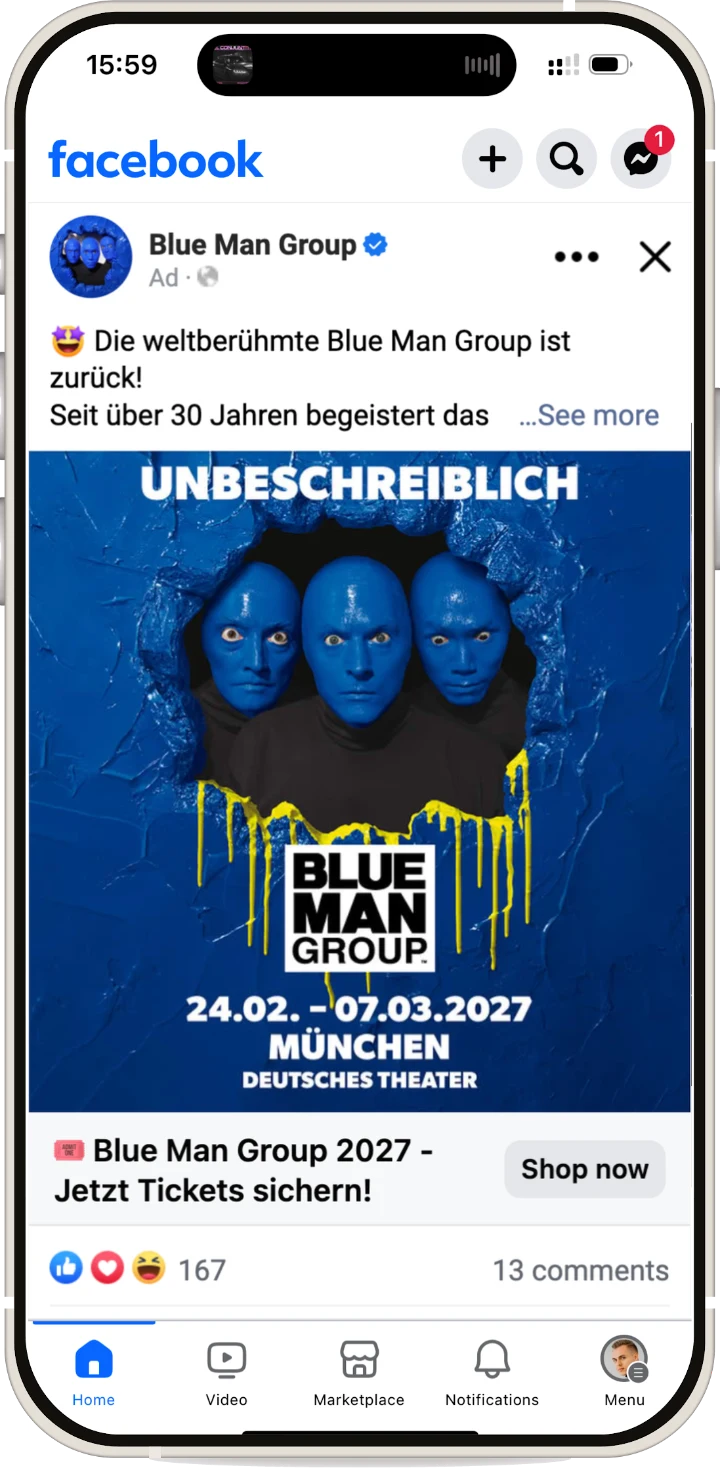
What Meta ads for events look like: real NYBA examples
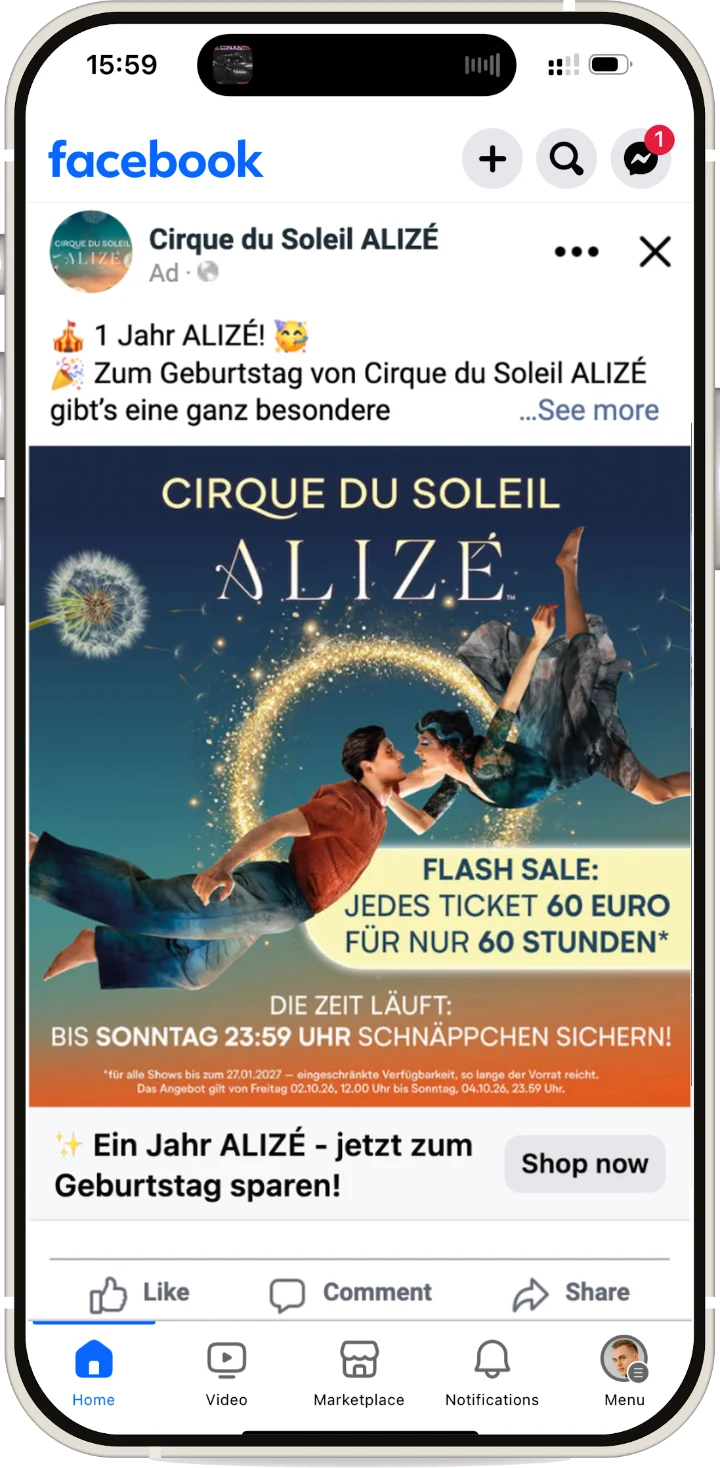
Three ads from live campaigns run through NYBA OS, shown the way fans see them on Facebook and Instagram: two feed ads and a video ad.
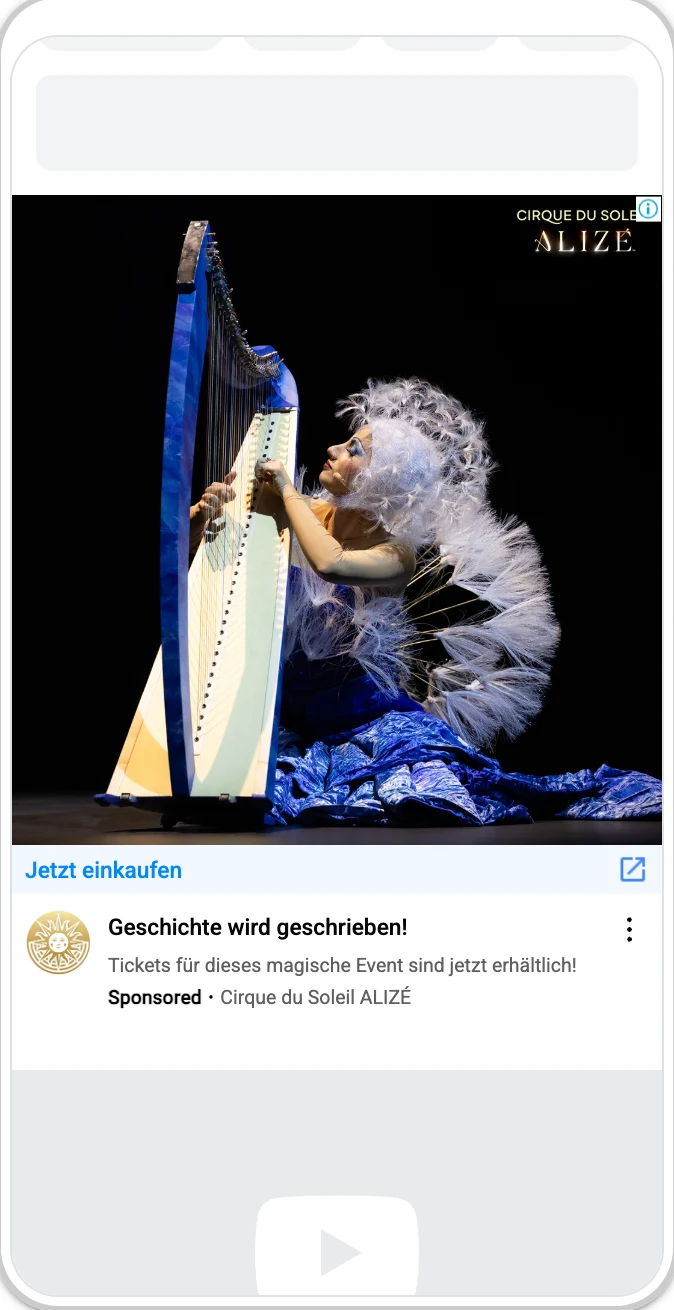
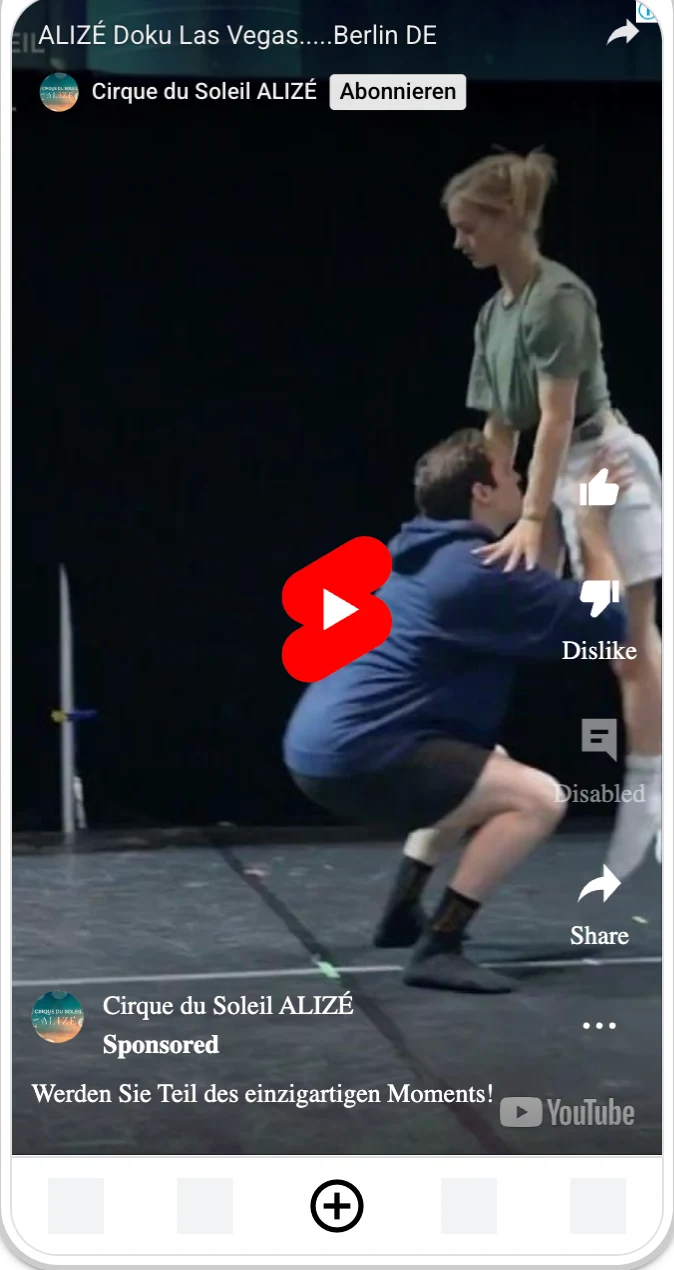
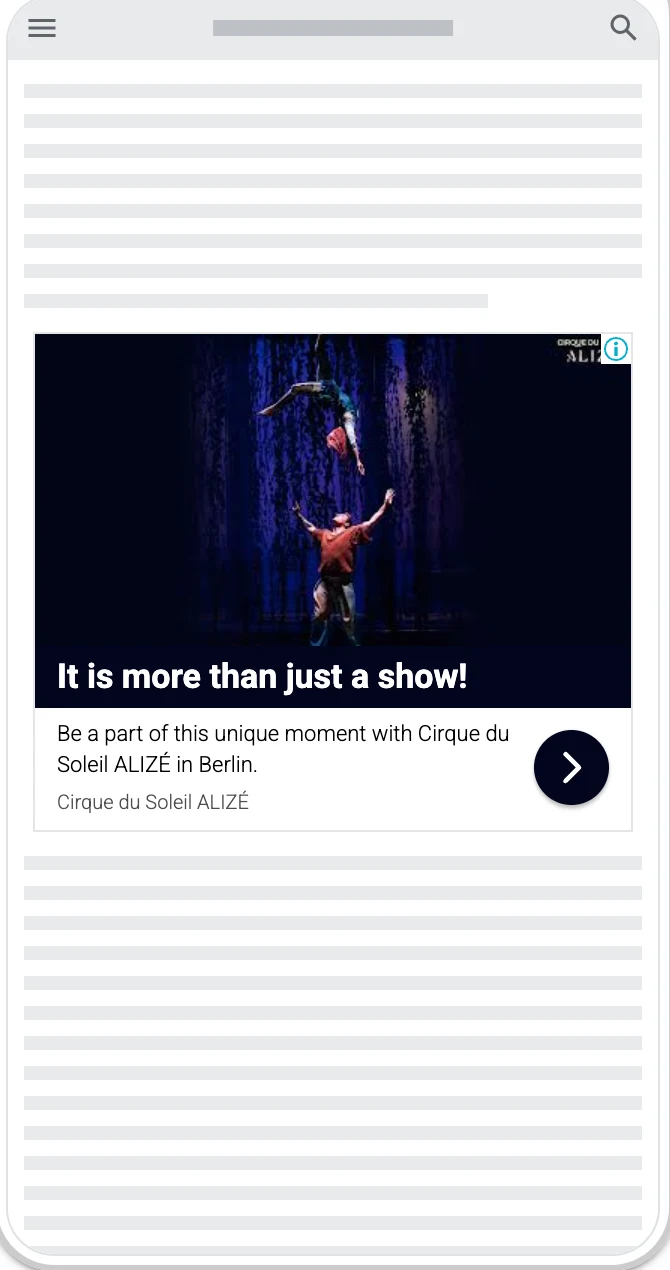
What Google ads for events look like: real NYBA examples
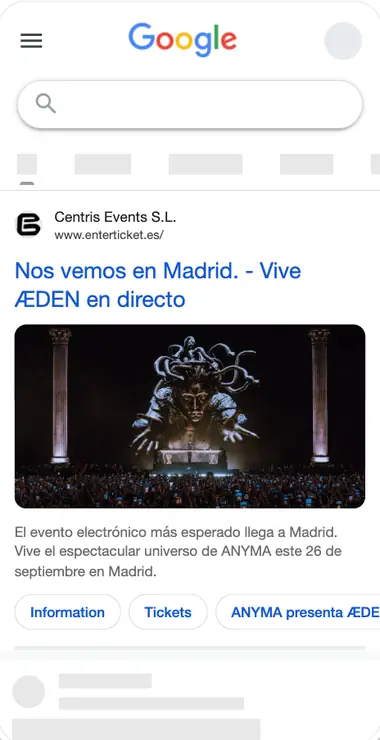
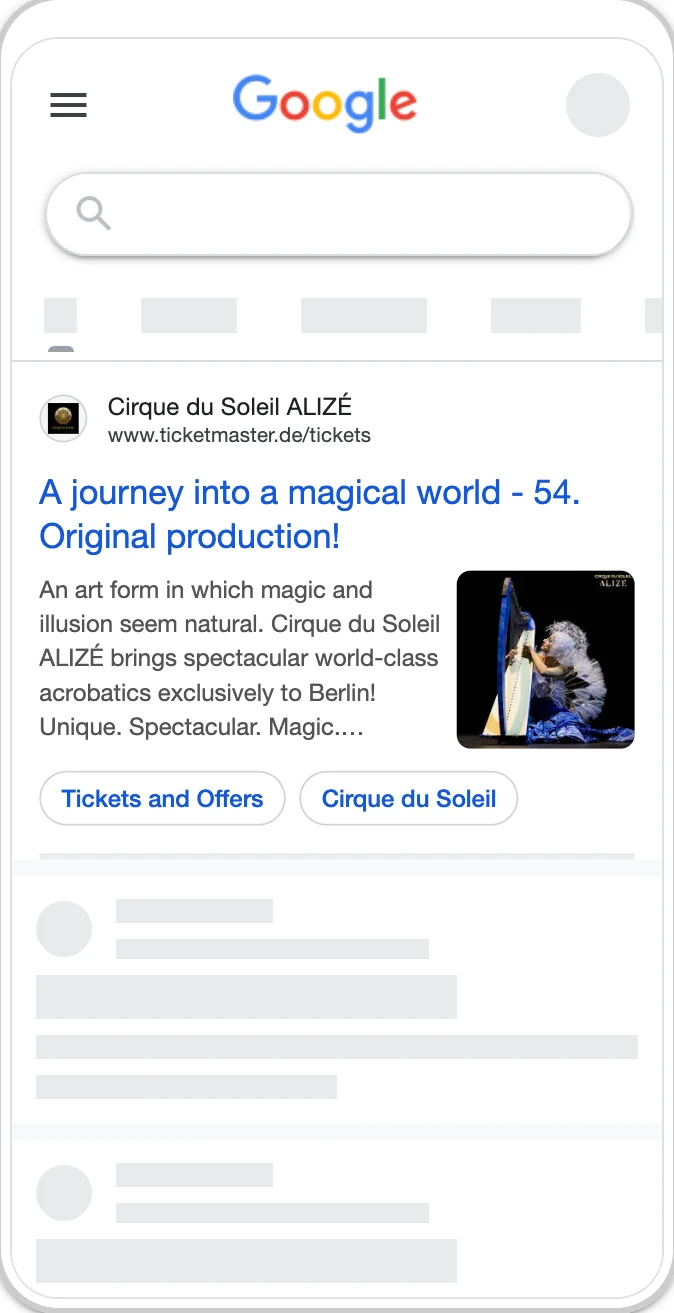
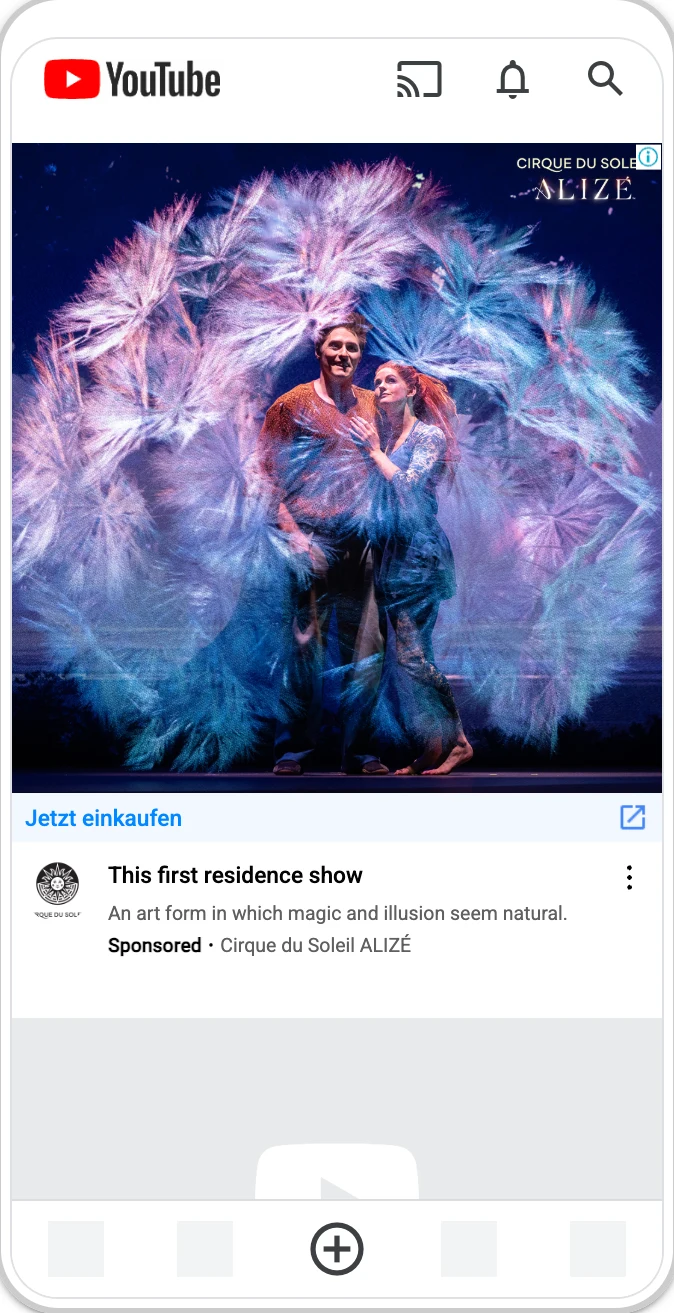
Real previews from live Google Ads campaigns run through NYBA OS: search ads with image, Performance Max in the YouTube feed, in Discover and on the Display network, and YouTube Shorts. One Performance Max asset group feeds all of these placements.
Every ad placement at a glance
Real ads from campaigns run through NYBA OS, sorted by platform: Google and YouTube, Meta, TikTok, ChatGPT and Snapchat. Tap a platform to expand it.
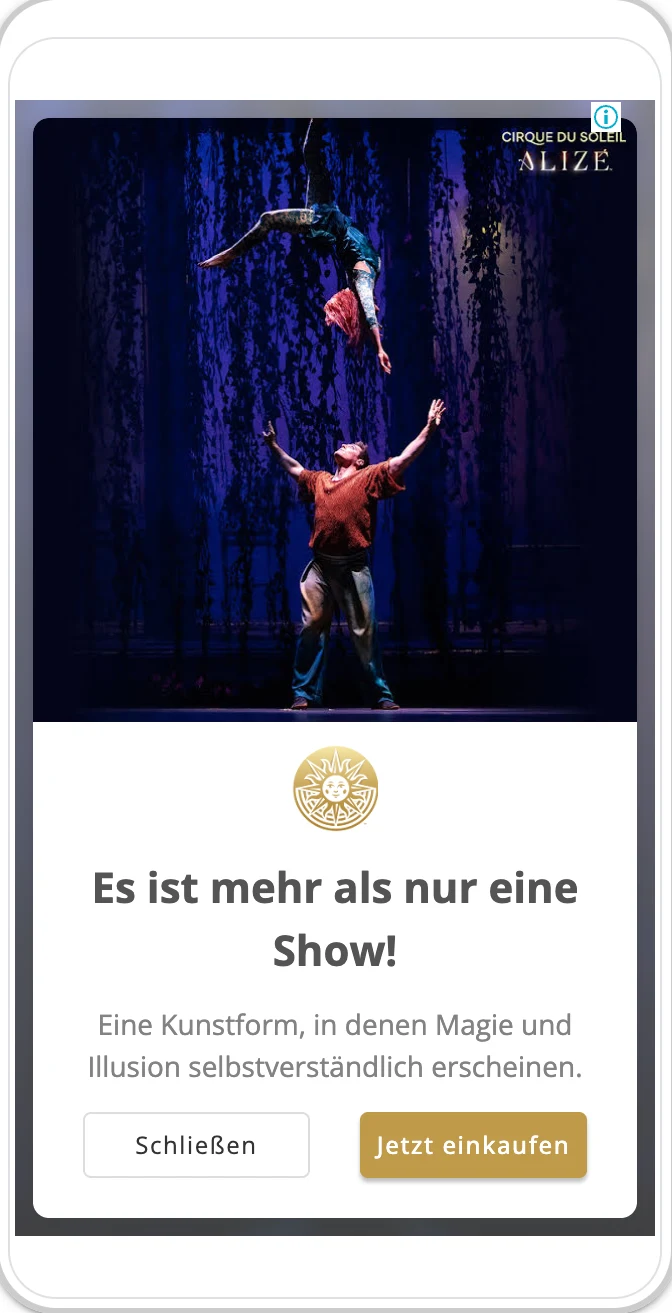


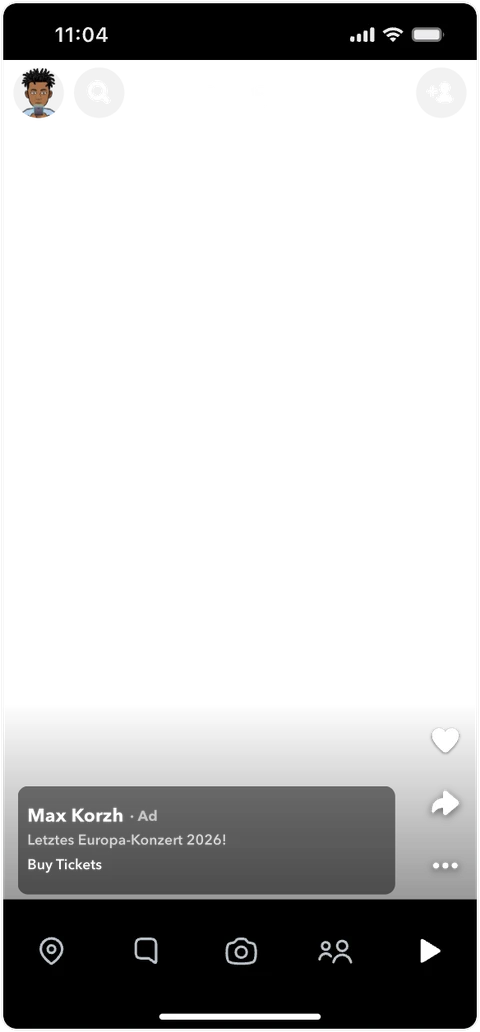
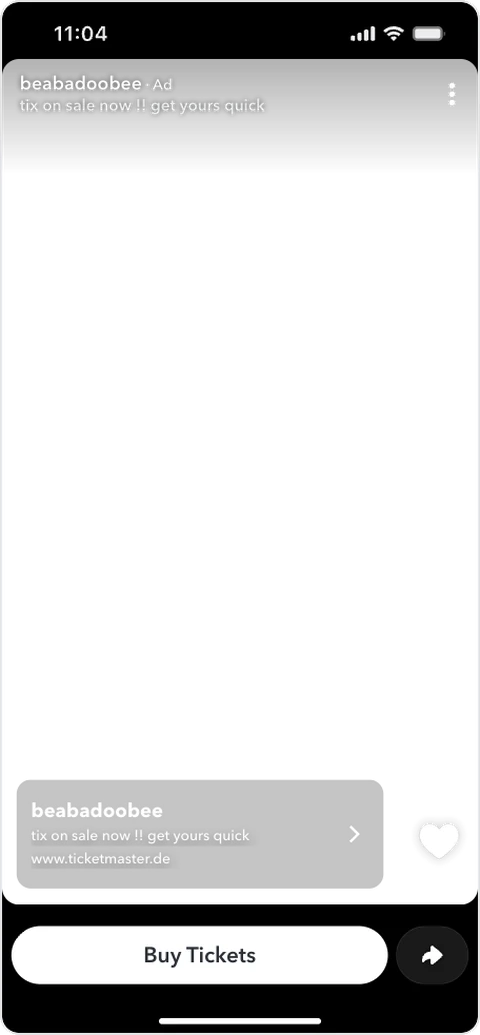
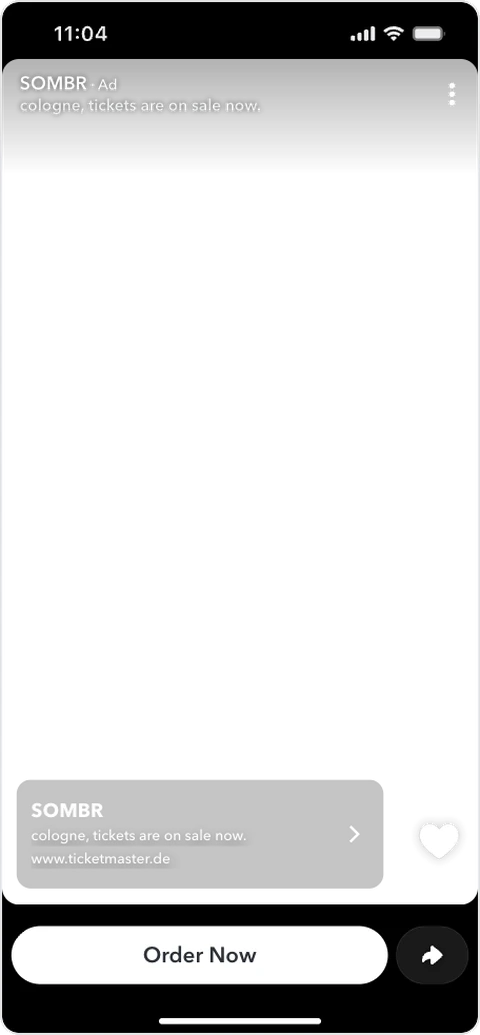
What Snapchat ads for events look like: real NYBA examples
Real previews from live Snapchat campaigns run through NYBA OS: a Spotlight video ad and full-screen video ads between Stories, each with a direct ticket button.
Depending on the type of event, NYBA runs this differently: concert and tour marketing, festival marketing and theatre marketing.

What would 3x more
revenue mean for you?
Find out:
