


TikTok Ads Manager: How to Advertise on TikTok


TikTok Ads Manager: guide and tips.
With its user numbers rising steadily, TikTok Ads is attractive to almost every advertiser. TikTok currently has more than 2 billion downloads worldwide. According to TikTok Ads Manager, the number of TikTok users in Germany alone is just under 20 million. On average, users spend 50 minutes a day on the platform.
Do you also want to seize the opportunity to position your business on TikTok, the fastest-growing social media platform, and benefit from its creativity, fast pace, low CPM and exclusive audience? Then you have come to the right place. Below, this guide explains the steps you need to take to advertise successfully on TikTok.
As with Meta, you need an Ads Manager account to run TikTok Ads.
How do I create a TikTok Ads Manager account?
To set up this TikTok ad account, follow these steps:
1. Go to https://ads.tiktok.com/i18n/signup/ and enter the required information.
.png)
2. In the next step, you enter details about your business, such as industry and company name.
.png)
3. Next, you provide further information, such as your website and payment details.
.png)
4. Complete your TikTok registration by clicking “Submit”.
TikTok then reviews your details. This can take up to 24 hours. Once registration is complete, you can log in to TikTok Business Center with your user credentials.
Structure and features of TikTok Ads Manager
Congratulations! You now have access to your TikTok Business Center. Via the menu (9 dots) at the side, you can open your own Ads Manager. Under Assets > Advertiser accounts, you can access the Ads Manager of the ad accounts assigned to you.
The Dashboard
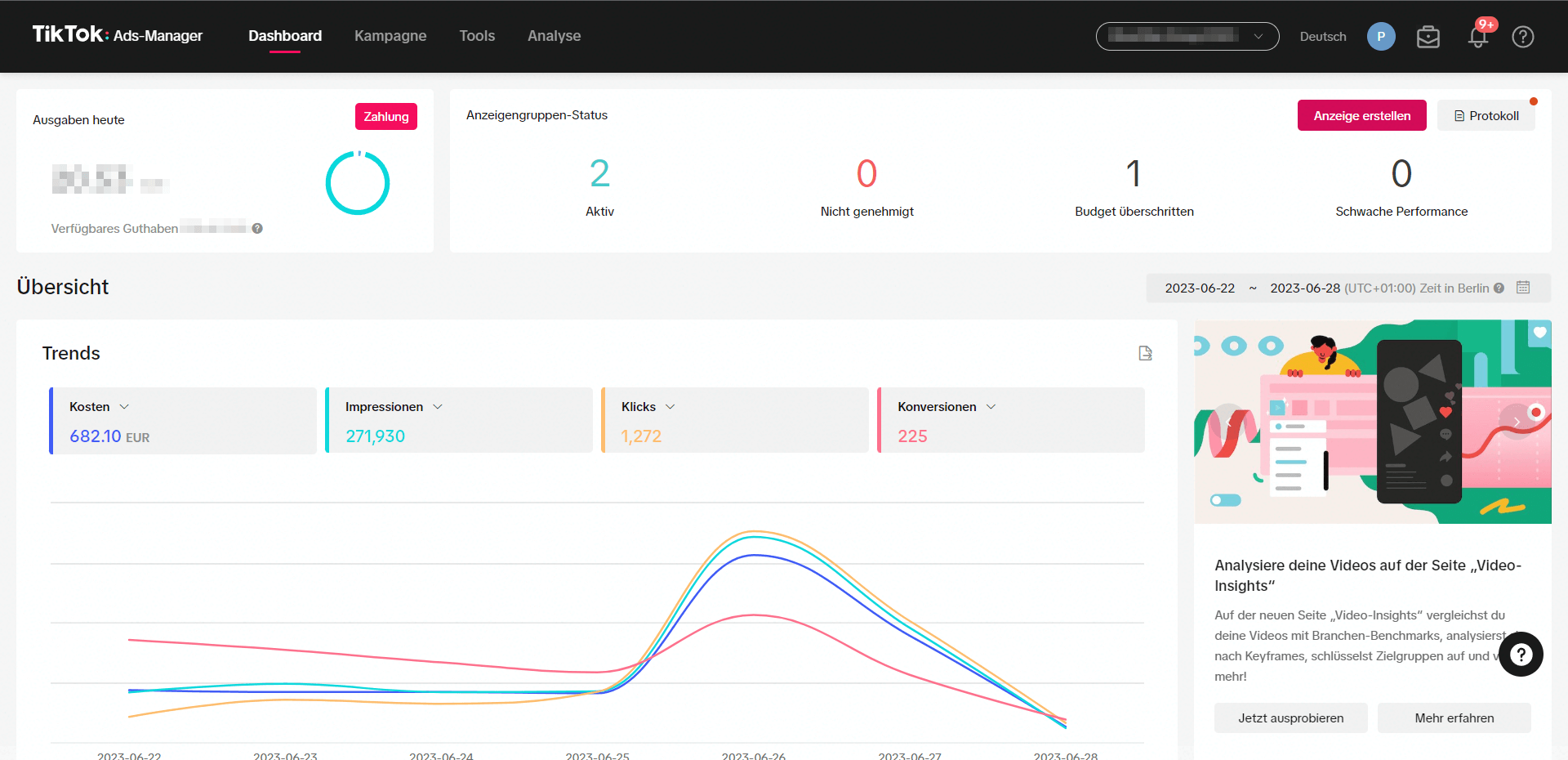
When you open TikTok Ads Manager, you land on the Dashboard. There you will find several overviews of your running campaigns:
- Today's spend and your current account balance, plus a button to top up the account.
- A chart of the selected time period (set on the right-hand side)
- A selection of the metrics shown for this period (here: cost, impressions, clicks, conversions).
- A panel with tips and updates.
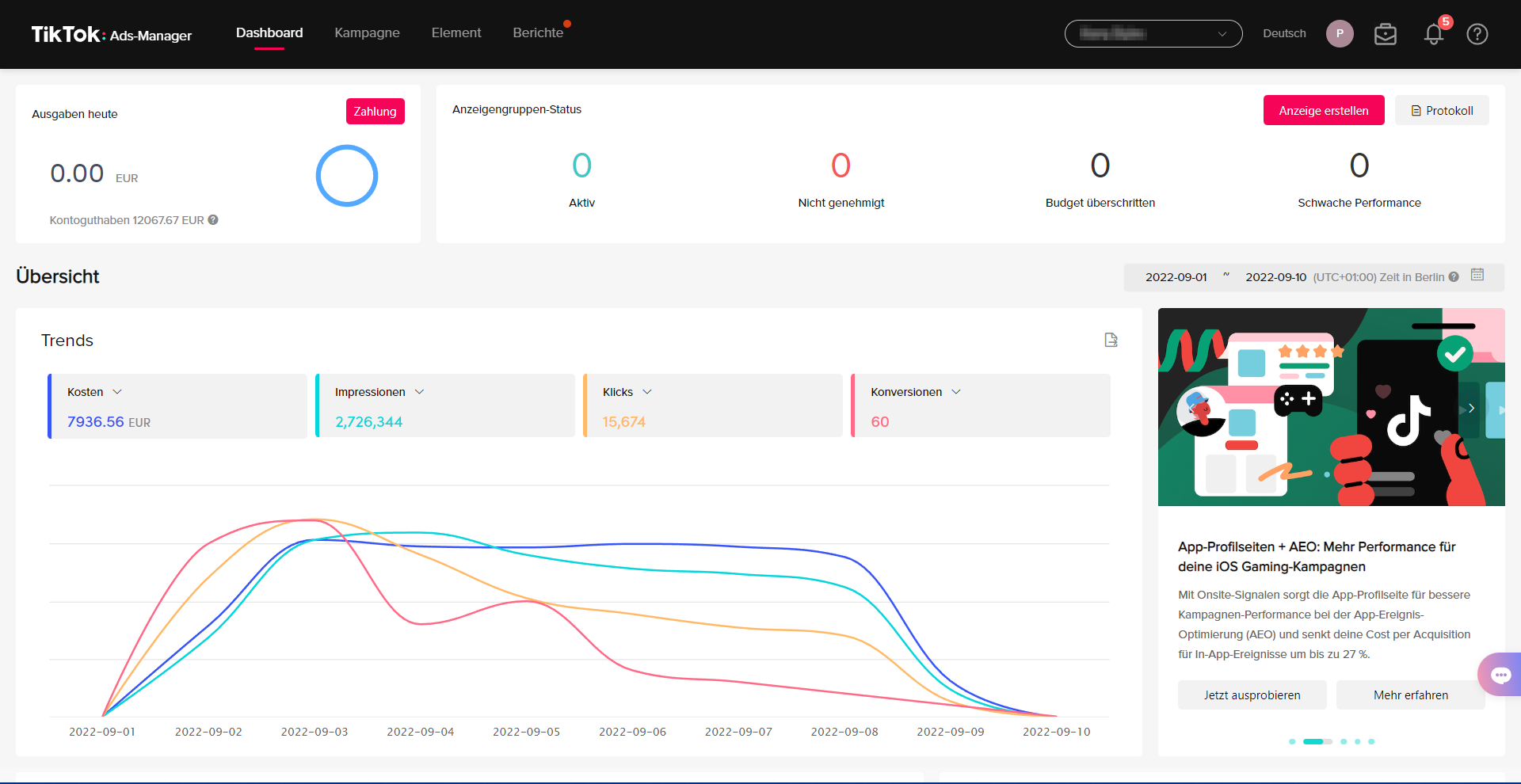
If you scroll further down, you will find more information about your campaigns:
- An overview in table form with customisable columns.
- Adjustable charts for the categories placements, gender and operating system.
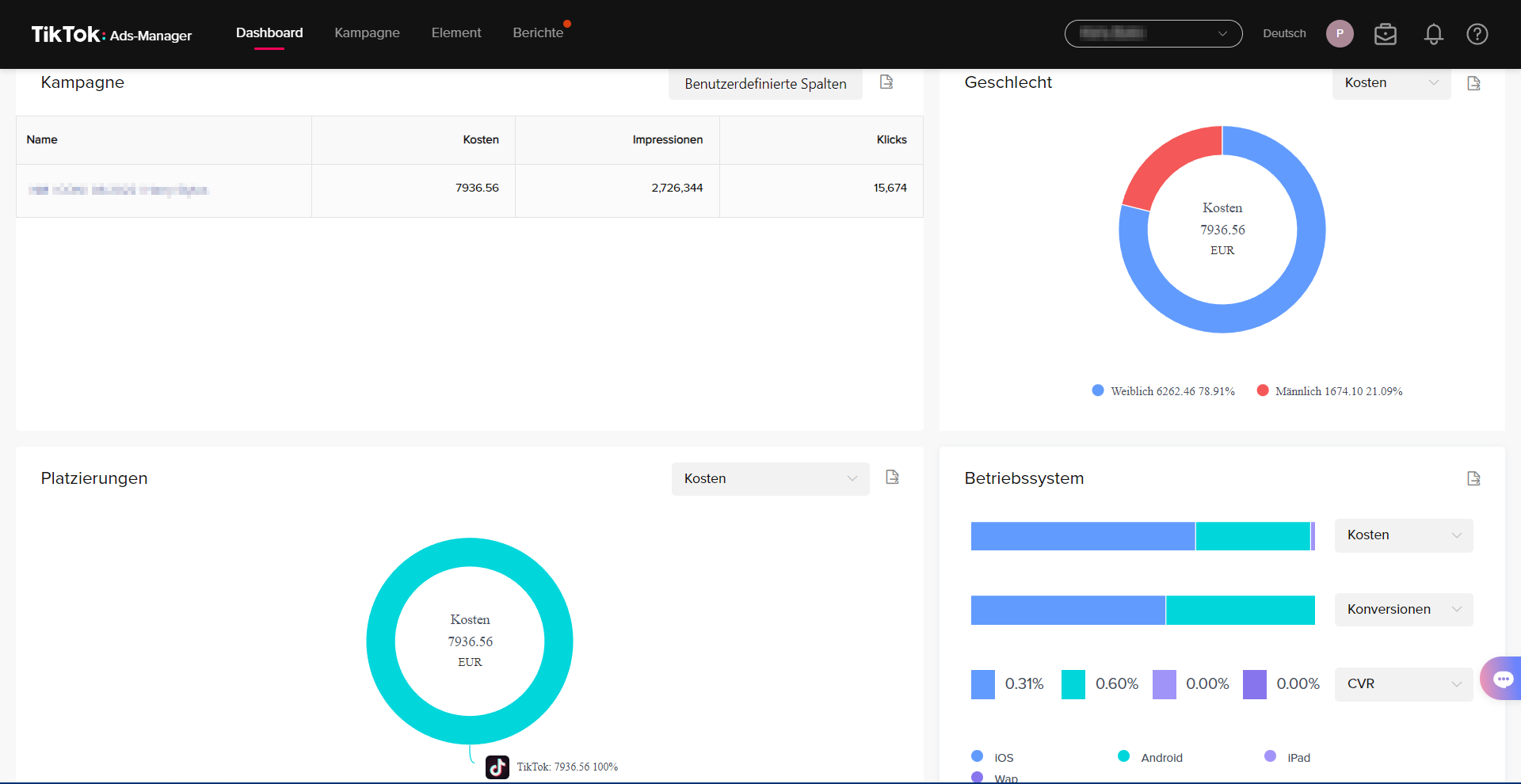
With these features and charts, the TikTok Ads Manager dashboard gives you a good overview of current and past campaigns, and you can easily check your budget, results and audience.
Campaigns
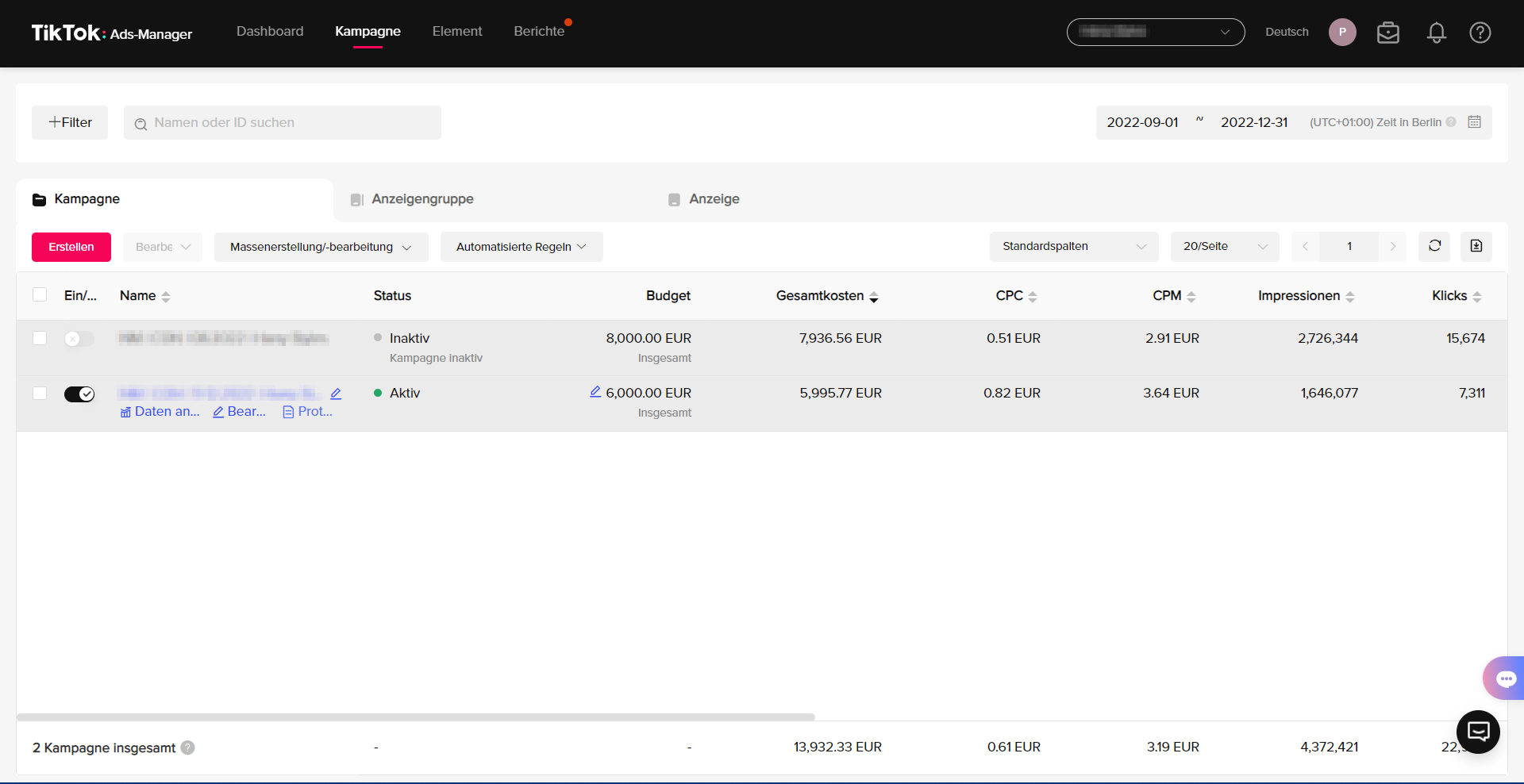
Under the “Campaign” tab, you will find the control centre for your campaigns. Here you can create new campaigns, edit running ones and look at the figures in more detail. The Campaign page offers the following features:
- An overview of the “Campaign”, “Ad group” and “Ad” levels for the selected time period.
- The columns are customisable and include cost, budget, schedule and KPIs, among others.
- Create for new campaigns (you will find more details on campaign setup in the section “How to create your first campaign”).
- Edit below the name of the respective campaign, ad group or ad opens the full editing view.
- View Data below the name gives you a detailed view of the results
- History below the name lets you export a data log
- Bulk Create/Edit: this lets you create or edit large numbers of campaigns, ad groups or ads at the same time by importing or exporting the settings as an Excel file, editing them and then importing them again.
- Automated Rules: here you can create rules based on the “if-then principle”. If a certain situation occurs, a defined action is carried out. For example, a campaign can be deactivated automatically once it reaches a set number of clicks.
.png)
.png)
Assets
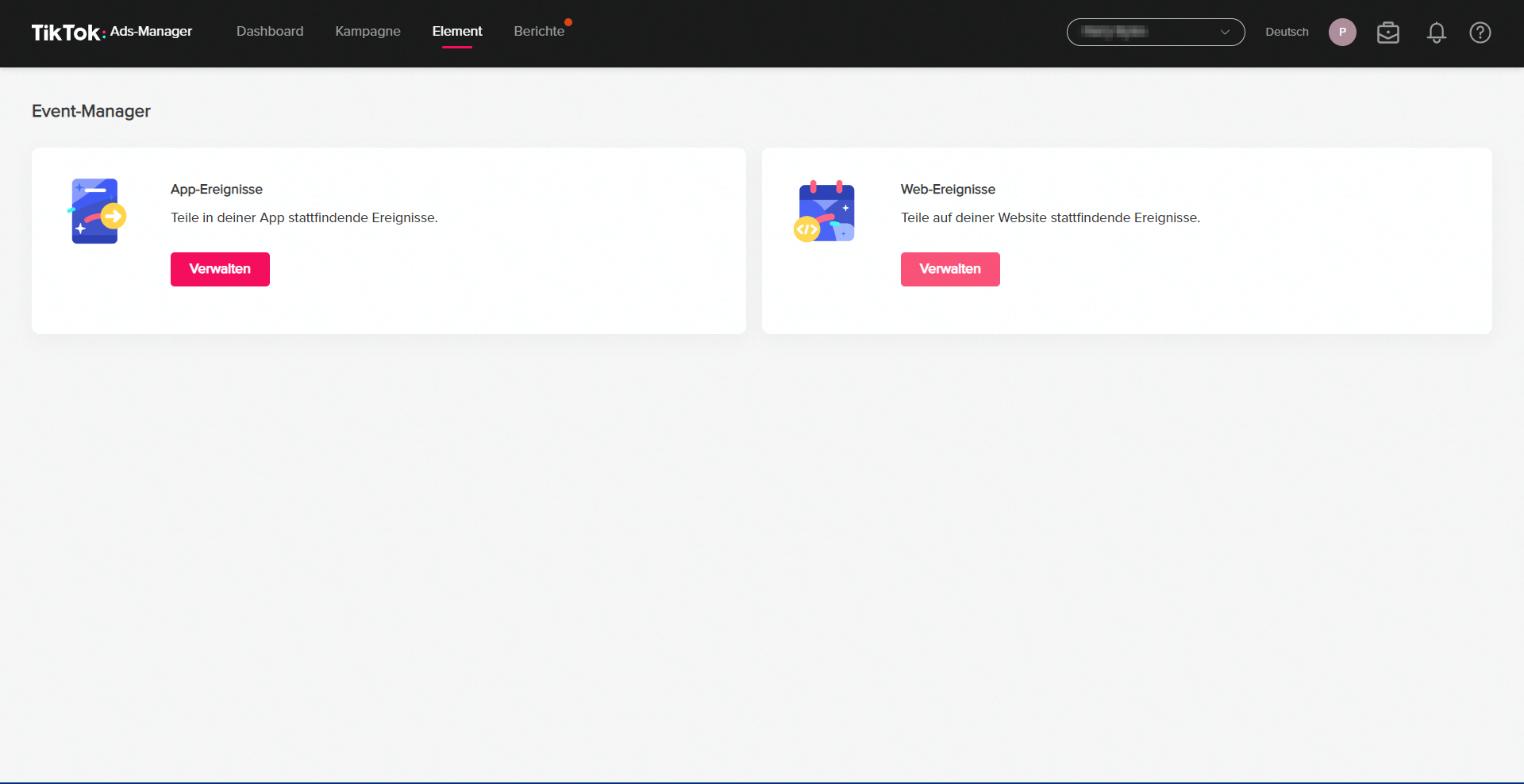
Under the Assets tab, you will find the sub-items Events, Creatives, Audiences, Comments and Instant Pages. Let us look at these in more detail:
Events
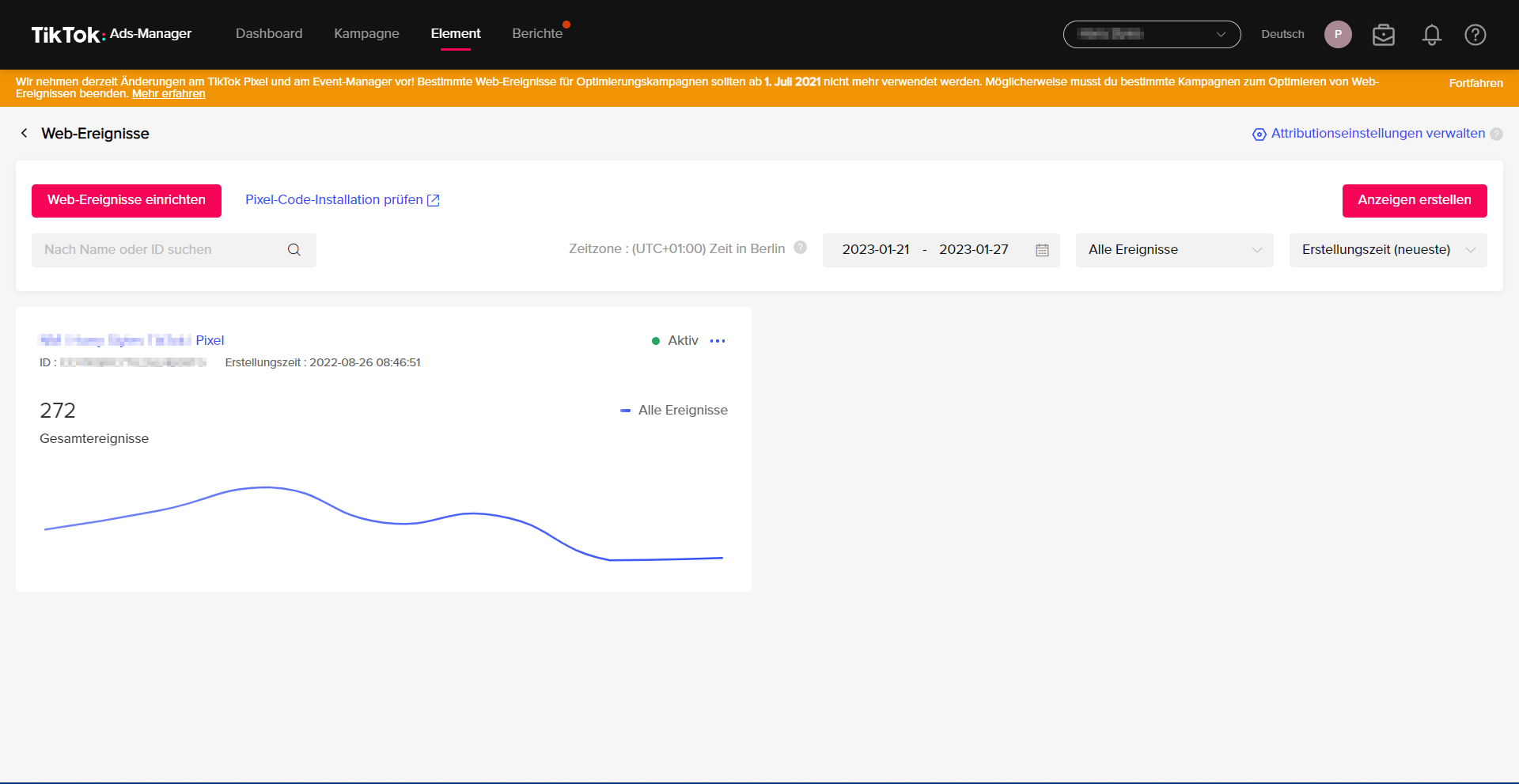
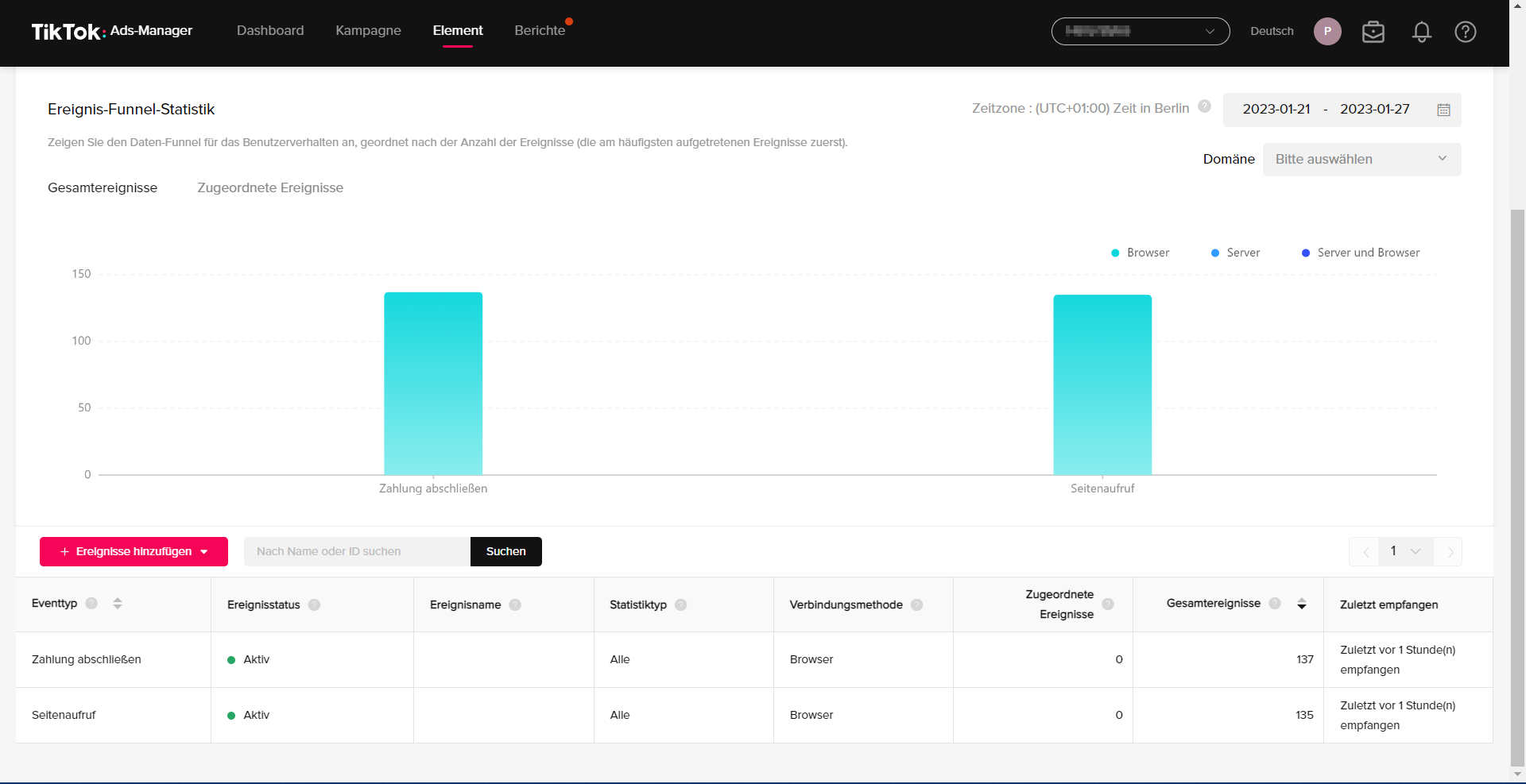
- In the Events section, you can set up and manage new website and app events
- Checking pixel activity on a website
- Manage attribution settings: here you can set the time window in which conversions are measured
Creatives
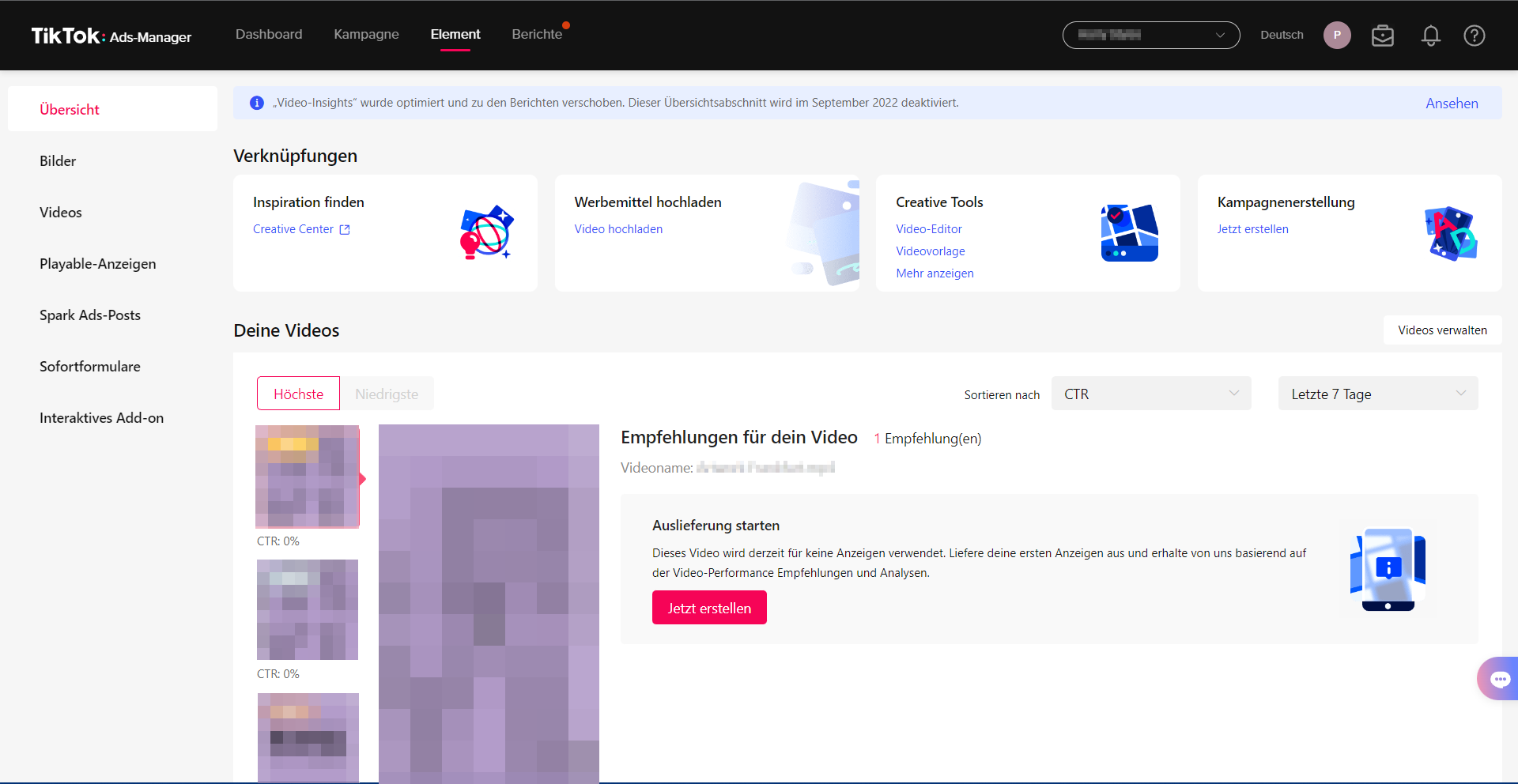
- Overview of the images and videos in use, with performance recommendations
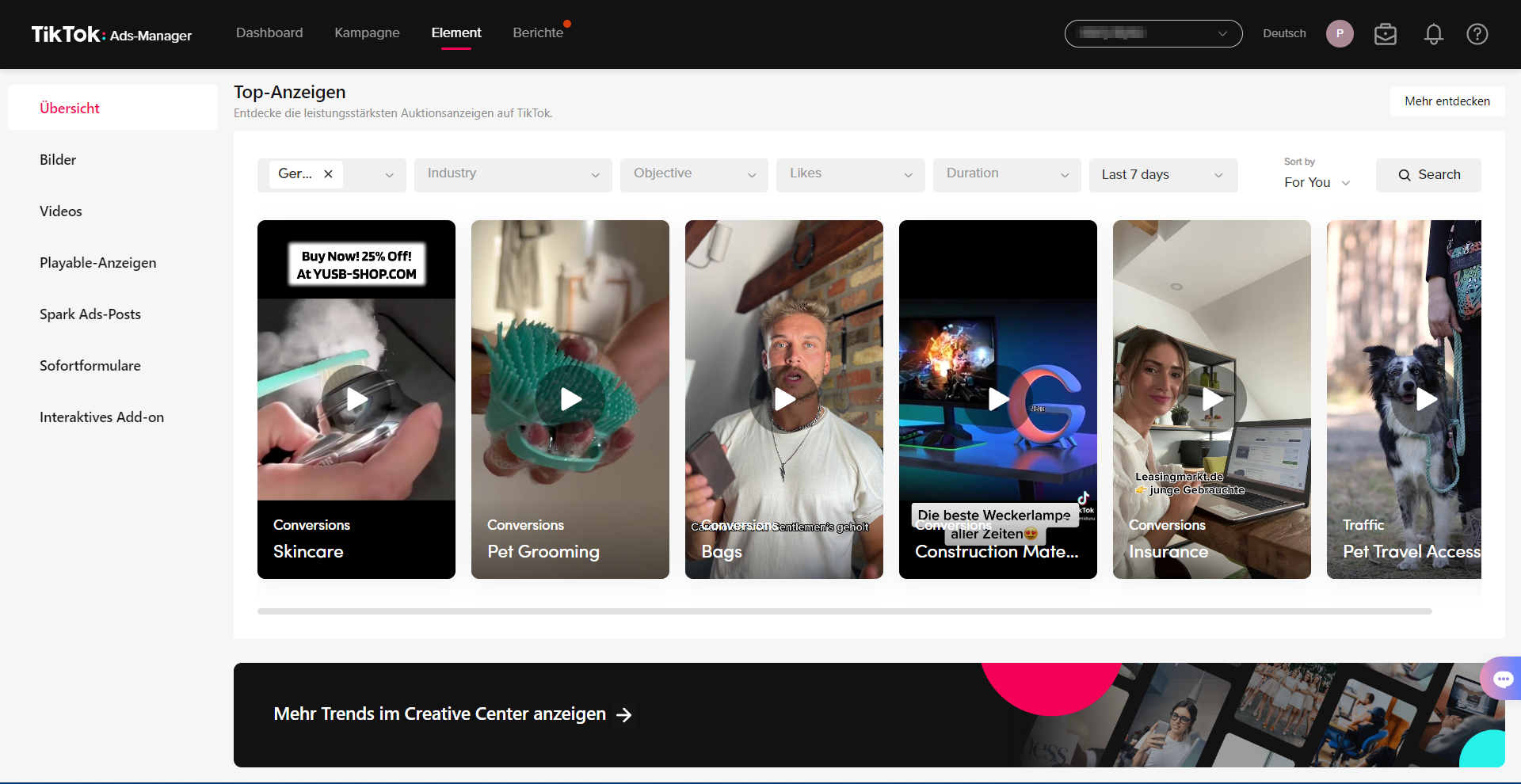
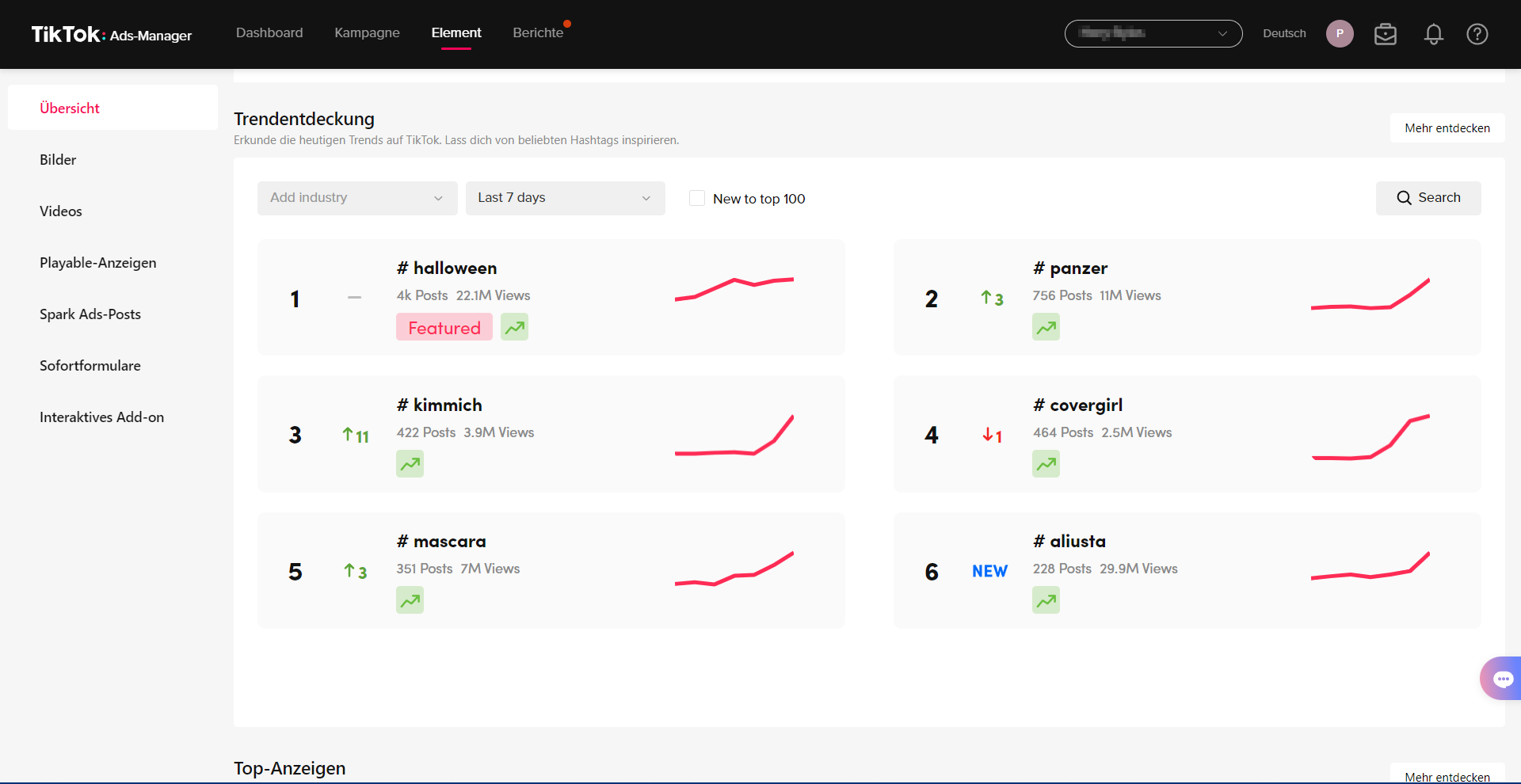
- The Trend Discovery and Top Ads sections give you information about the currently most popular hashtags and the strongest ads
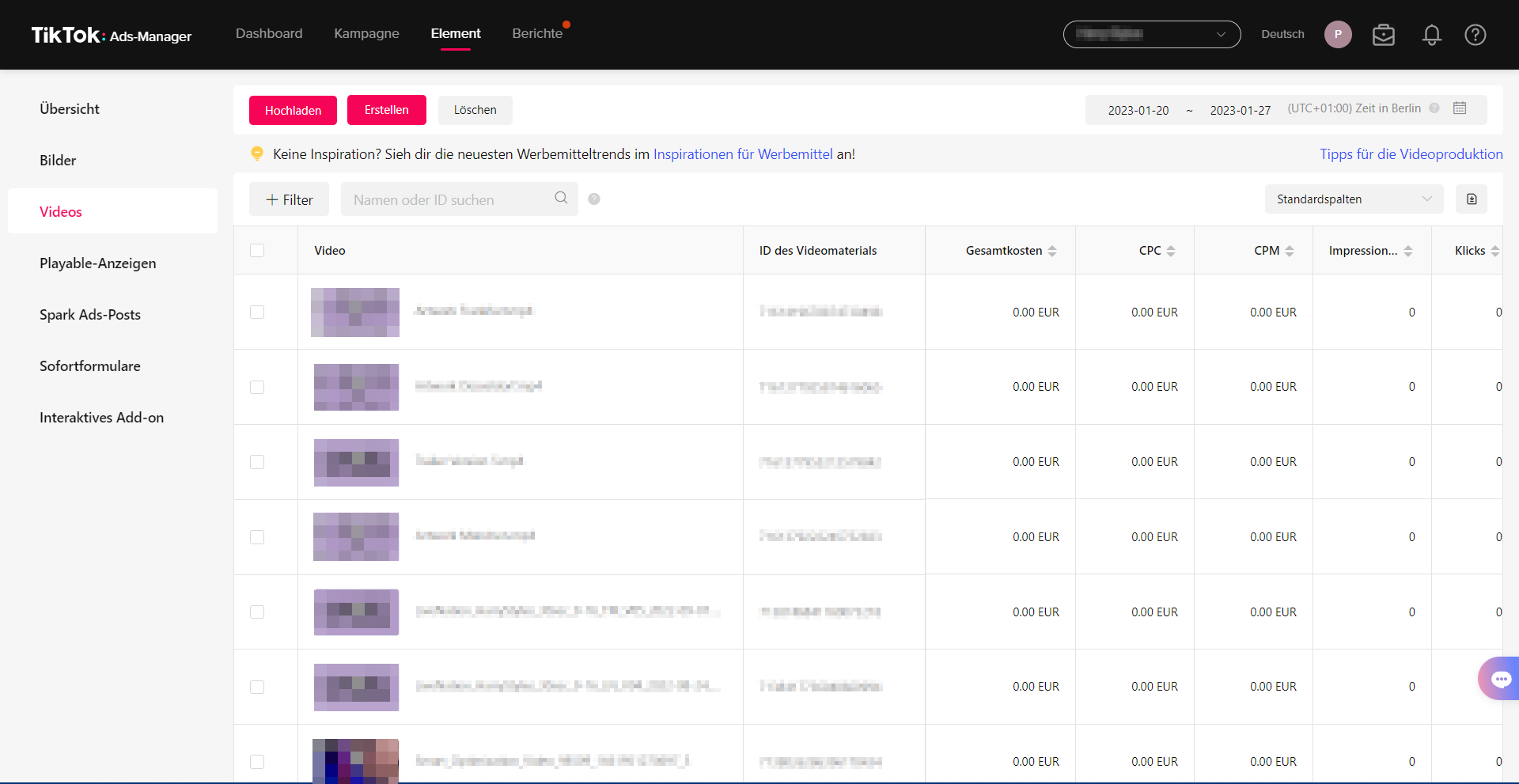
- Under Images, Videos, Playable Ads, Spark Ads Posts, Instant Forms and Interactive Add-ons you can upload or create and edit the relevant media
- Playable ads are currently not available in Germany
- You can find more information about Spark Ads here
- The Instant Forms category has been moved elsewhere. More information follows later in this blog.
- Interactive Add-ons are elements added to the video to make information easier to access and to increase attention
Audiences
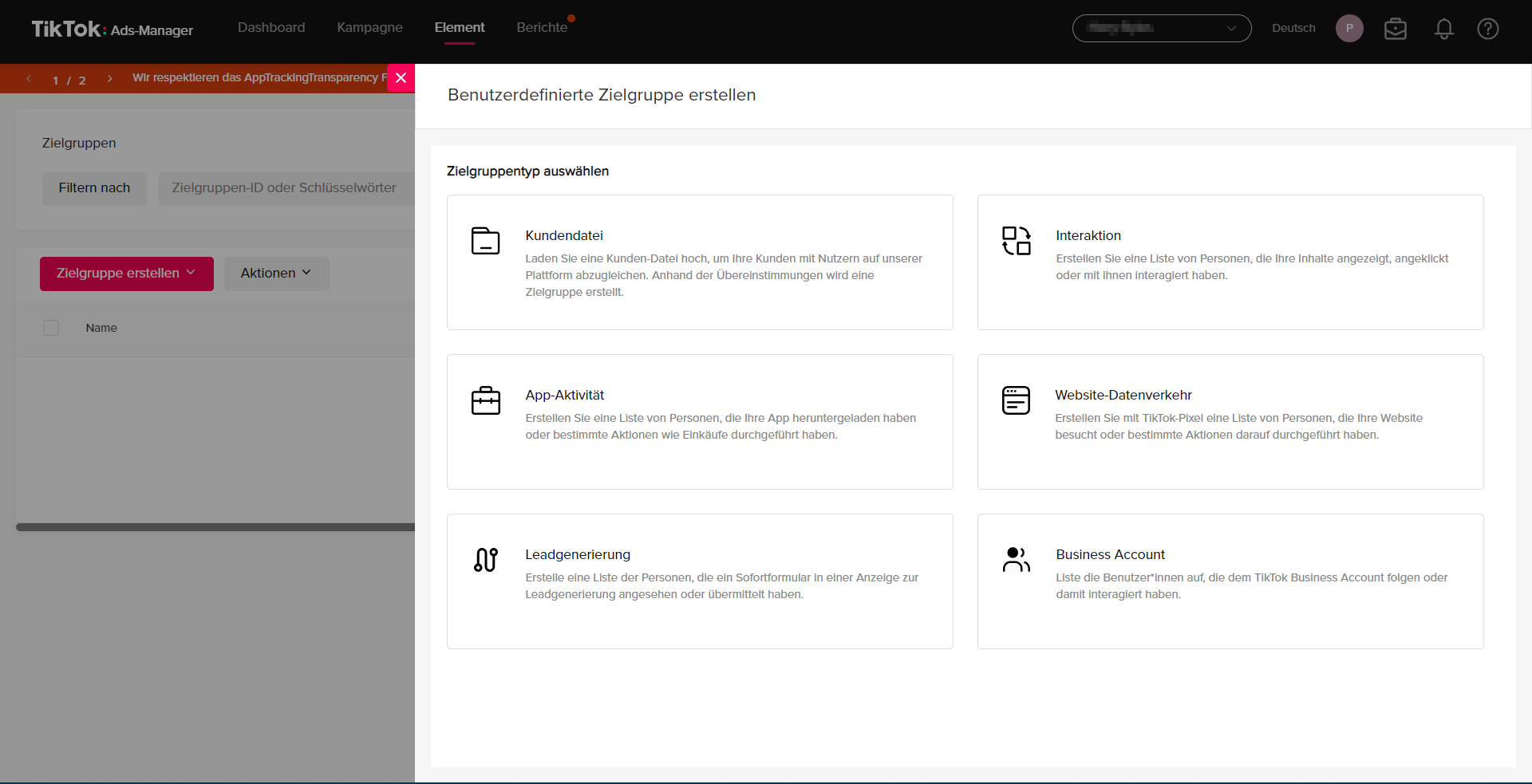
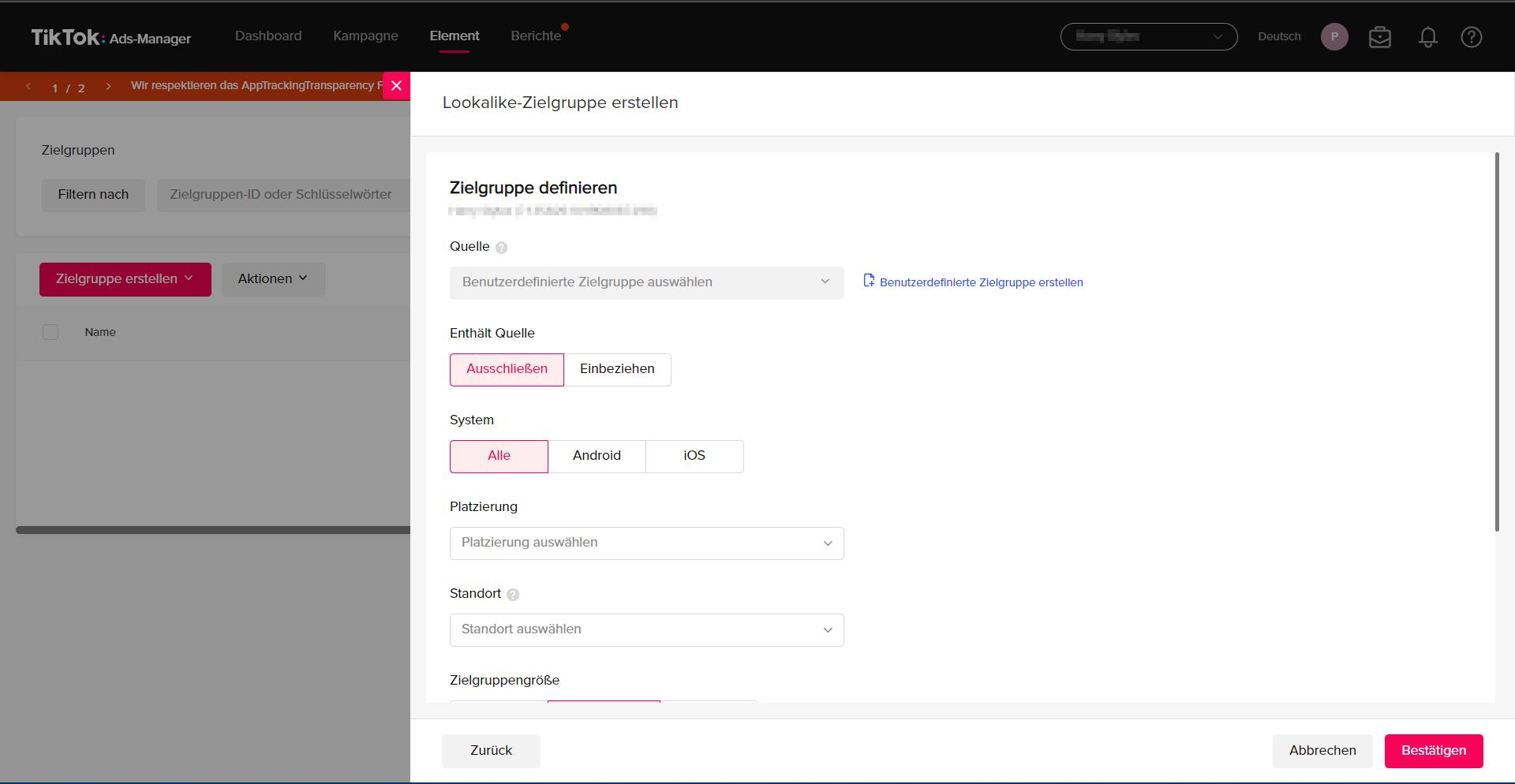
- Here you can create and edit Custom Audiences and Lookalike Audiences
- Custom audiences offer you various targeting options, such as interaction with specific content on TikTok, apps or websites
- With lookalike audiences, the interests and demographic data of existing customers are applied to the new audience (you will find more details on audiences in the section “How to create your first campaign”)
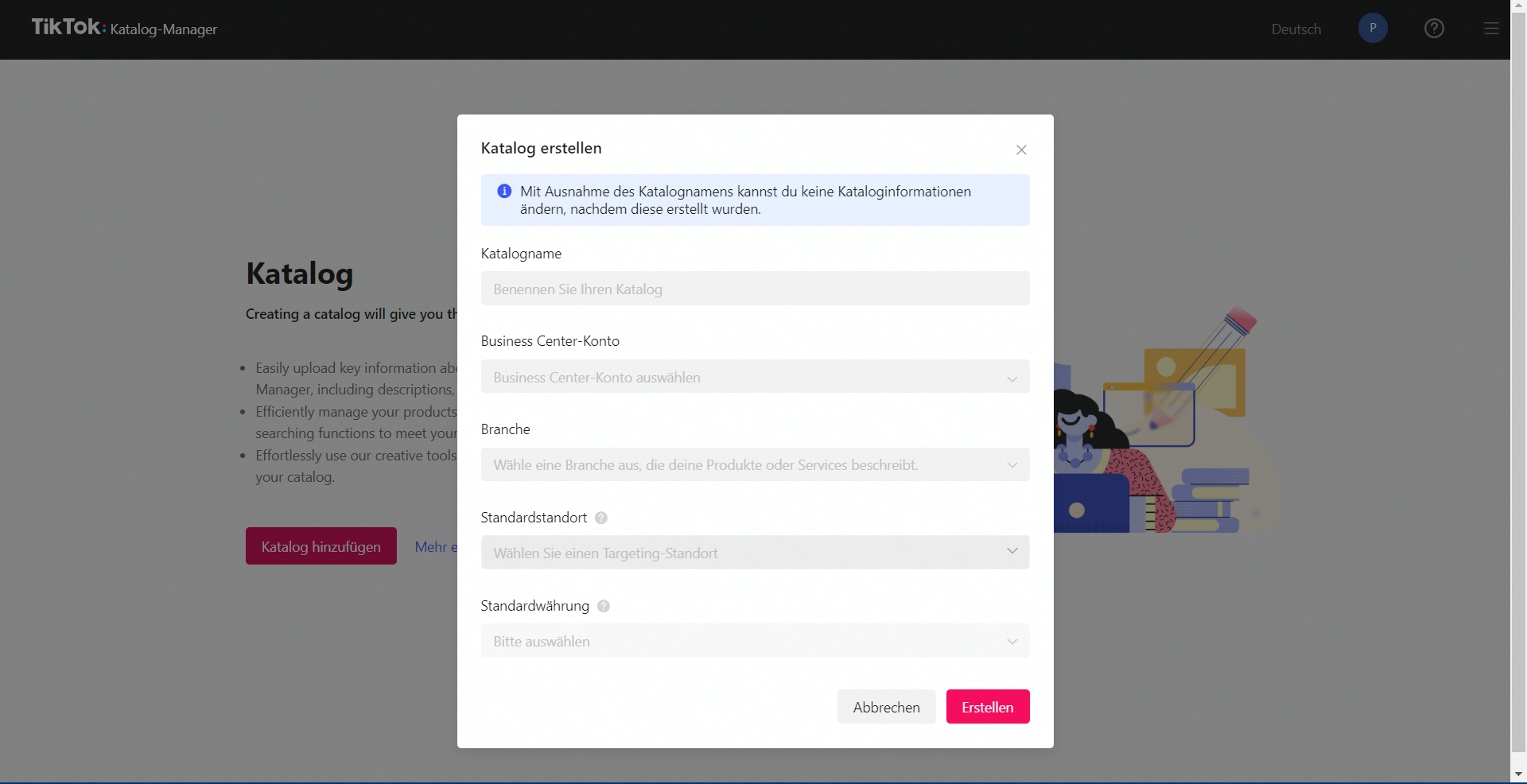
Catalogs
- Here you can manage your TikTok catalogues
- Catalogues are an overview of products with images, prices and other information
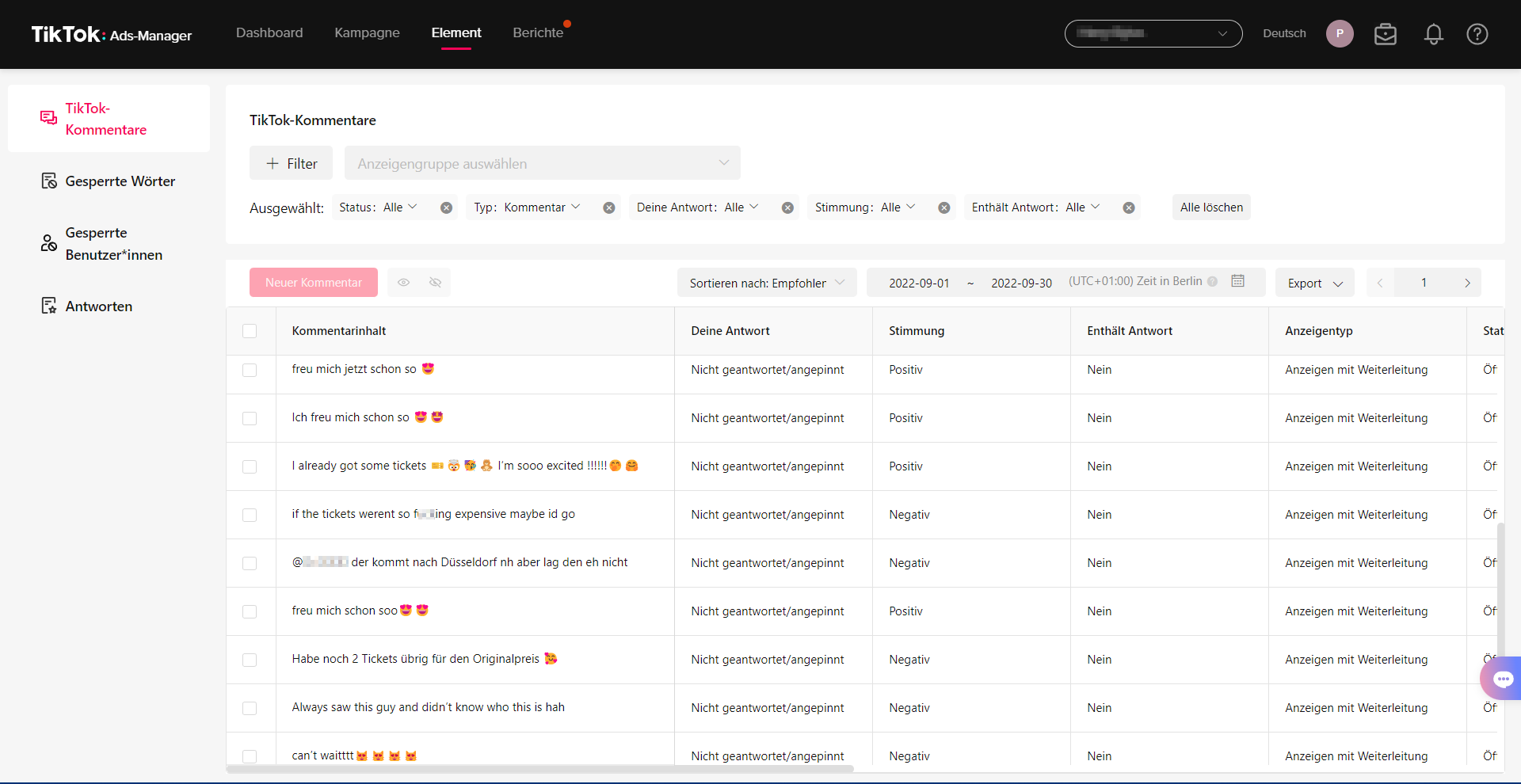
Comments
- In this section, you can see the comments on your content and filter them by status, sentiment, type or “replied”
- You can also manage the comments: you have the option to block words or users
- Under Replies you can add ready-made replies so you can respond to comments quickly
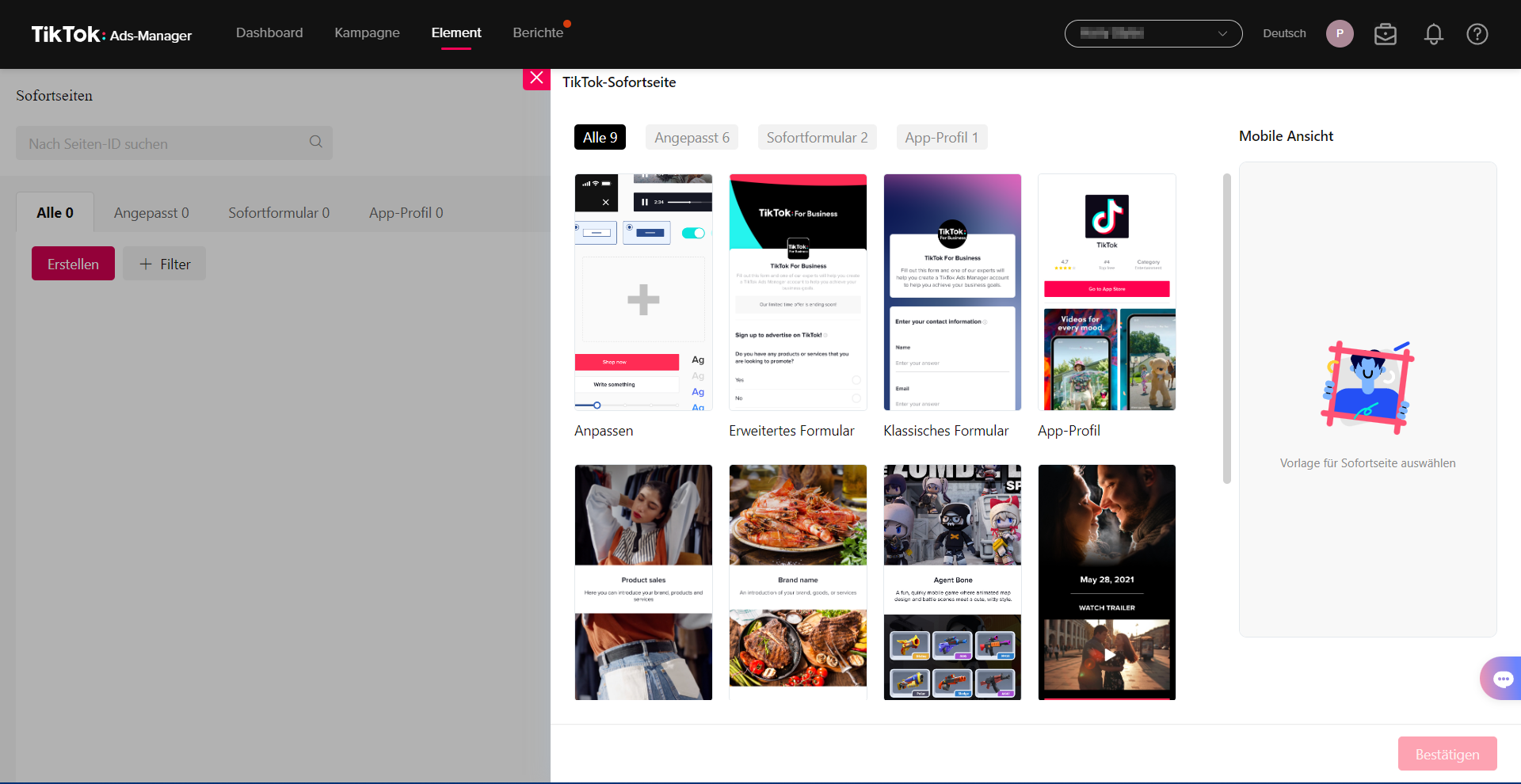
Instant Pages
- Instant Pages in TikTok Ads Manager are fast landing pages that open within the TikTok app to take users directly to a specific page. Instant Pages can be used for a wide range of purposes, such as showing product information, collecting lead information or displaying discounts and offers.
- Here you can create new Instant Pages and manage your existing ones
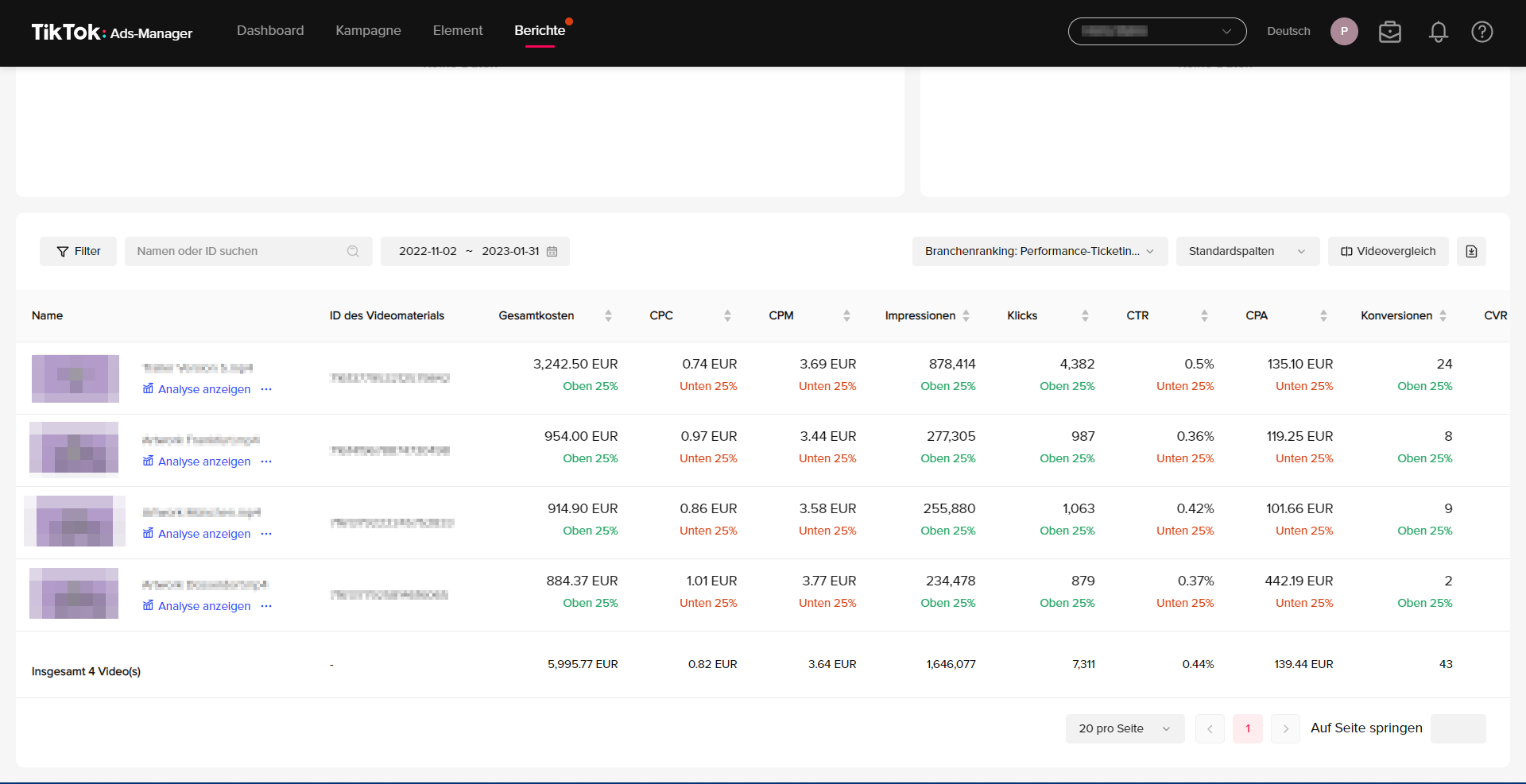
Reporting
- The Reporting section in TikTok Ads Manager provides you with detailed information about your ad campaigns. You can use this information to monitor and optimise the effectiveness of your ad campaigns.
- Under Custom Reports you can define and export your own reports
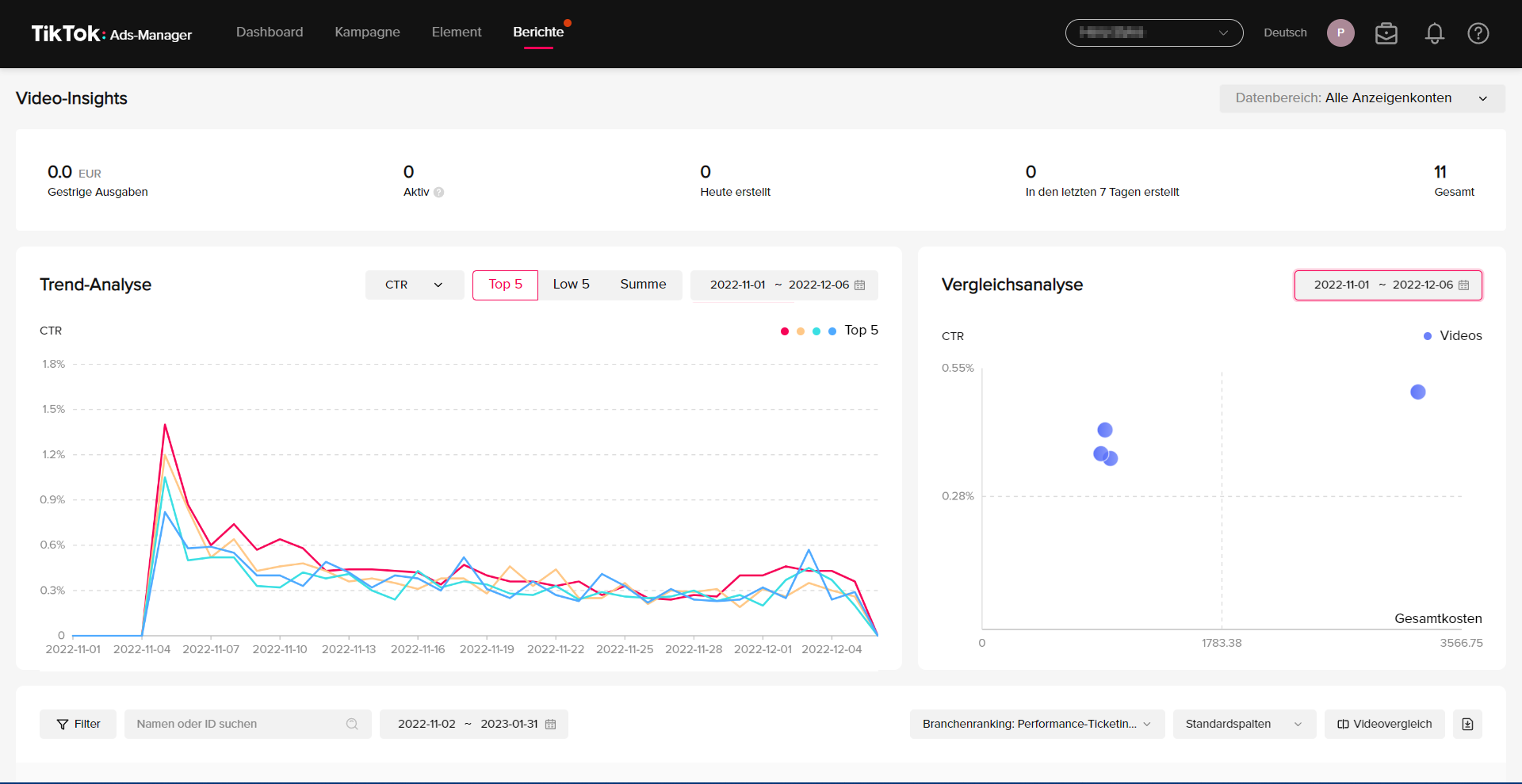
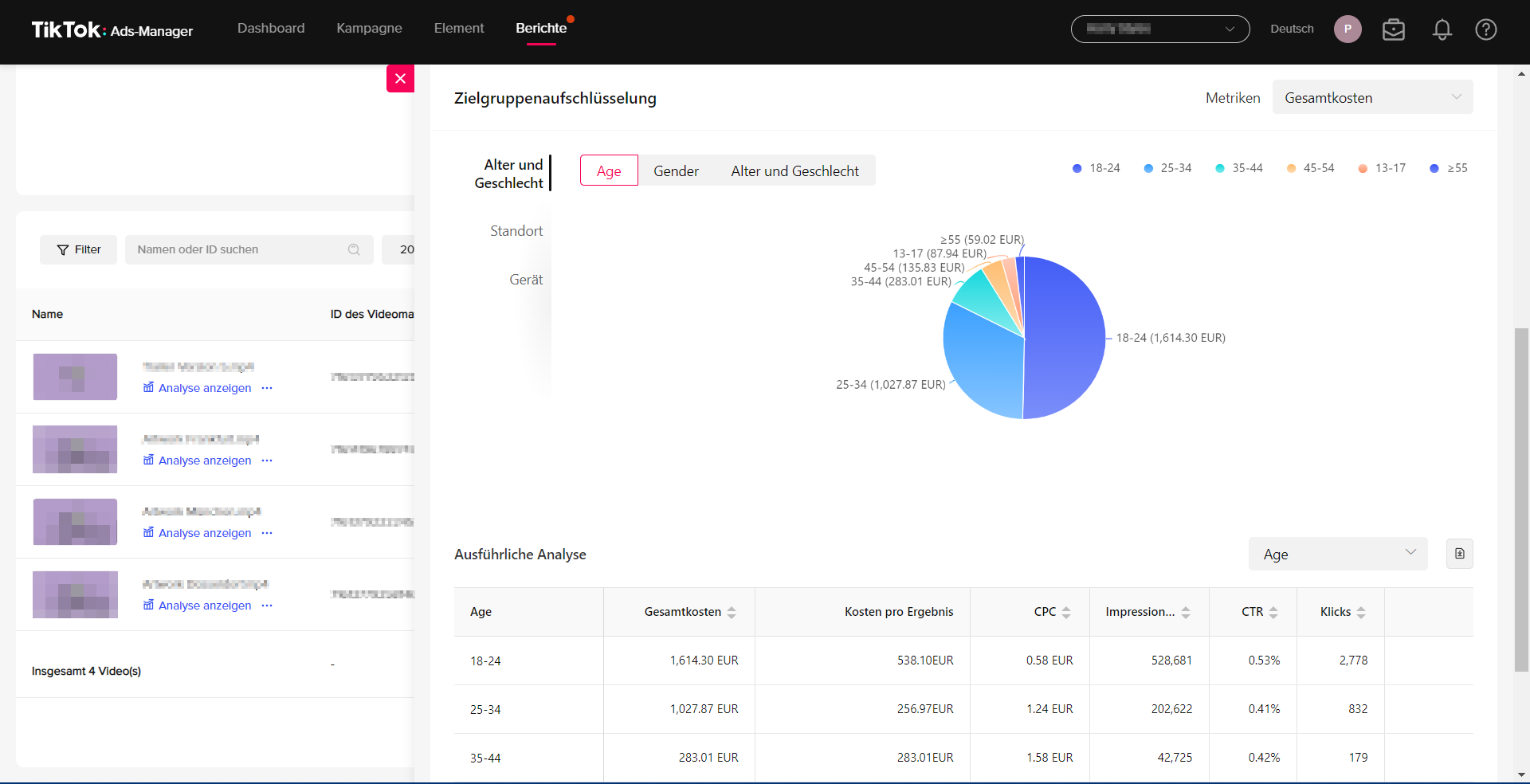
- The Video Insights item gives you detailed analyses of your videos, such as a trend analysis and a comparison analysis, as well as a precise audience breakdown.
- Creative Inspiration again contains a collection of the most successful ads and an overview of currently popular hashtags
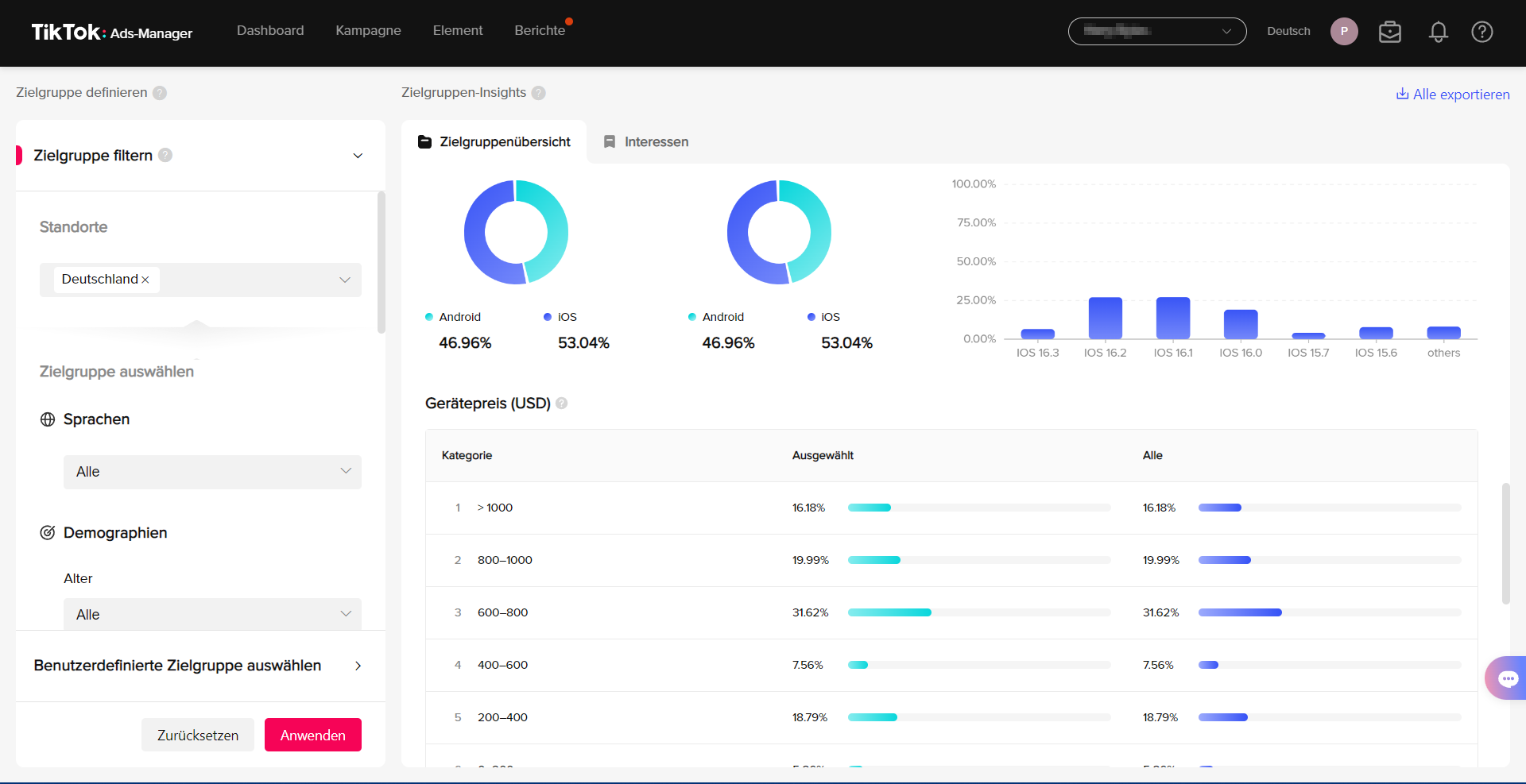
- Under Audience Insights you will also find detailed information about your audiences
- Categories: interests, behaviour, demographics, region, operating system and device price
TikTok Pixel
TikTok Pixel is an analytics tool that helps you measure engagement on your website and optimise your ad campaigns. It lets you track how users interact with your website after they have seen your TikTok ad. Here is a guide to setting up and using TikTok Pixel:
Creating a TikTok Pixel
- Log in to your TikTok Ads Manager account.
- Go to the "Assets" menu and select "Pixels".
- Click "Create Pixel" and give your pixel a name. You can also add an optional description.
- Click "Create".
Setting up the pixel code
- Go to the "Assets" menu and select "Pixels".
- Select the pixel you have just created.
- Click "Details" and you will see a page that displays the pixel code.
- You have two options for installing the pixel code: manually or with a tag manager. If you choose manual installation, copy the code and paste it into the header section of your website. If you use a tag manager, follow the instructions provided by your specific tag manager.
Setting up pixel events
- Go to "Assets" > "Pixels" and select your pixel.
- Click the "Event" tab.
- Here you can create custom events or choose from a list of preset events. These events can be actions such as "Page view", "Add to cart", "Purchase" and so on.
- Click "Add event" to create a new event. You can create the event either by inserting a code snippet on your website or by selecting URL rules.
- Once you have created the event, click "Save".
Checking the pixel status
- Go to "Assets" > "Pixels" and select your pixel.
- On the details page, you can check the status of your pixel. If the status is "Active", your pixel is working properly. If the status is "Inactive", this means that the pixel code is not installed correctly on your website or that there are no events that can be tracked.
Using the pixel in ad campaigns:
- When you create a new ad campaign, you can use the pixel you created to measure the impact of your ads.
- In the "Ad group" step, you will see the "Conversion tracking" option. Select the pixel you want to use here.
- You can then choose which specific events you want to track, based on your campaign objectives.
Analysing the pixel data
The TikTok Pixel collects information available through standard web browsers such as Chrome. This includes:
- Ad/event information: information about the ad a TikTok user clicked on, or an event that was triggered.
- Timestamp: the time at which the pixel event was triggered. This is used to determine when website actions took place, for example when a page was viewed, when a product was purchased, and so on.
- IP address: used to determine the geographical location of an event.
- User agent: used to determine information about the device manufacturer, model, operating system and browser.
- Cookies: first-party cookies are optional, but third-party cookies are enabled by default with the TikTok Pixel. Cookies support the measurement, optimisation and targeting of your campaigns. Performance improves when first-party and third-party cookies are paired with Advanced Matching.
TikTok Events Manager is a workspace for managing website pixels and events, and it gives you quick access to event data. No technical experience is required, so you can easily set up your website to track visitor actions using self-service tools:
- Add/edit events: make changes to your pixel as your website grows and changes, by editing existing events or adding new ones.
- Monitor and diagnose: check your pixel setup, monitor and test events in real time, or fix common issues using error messages and suggested solutions.
Creating campaigns and running ads
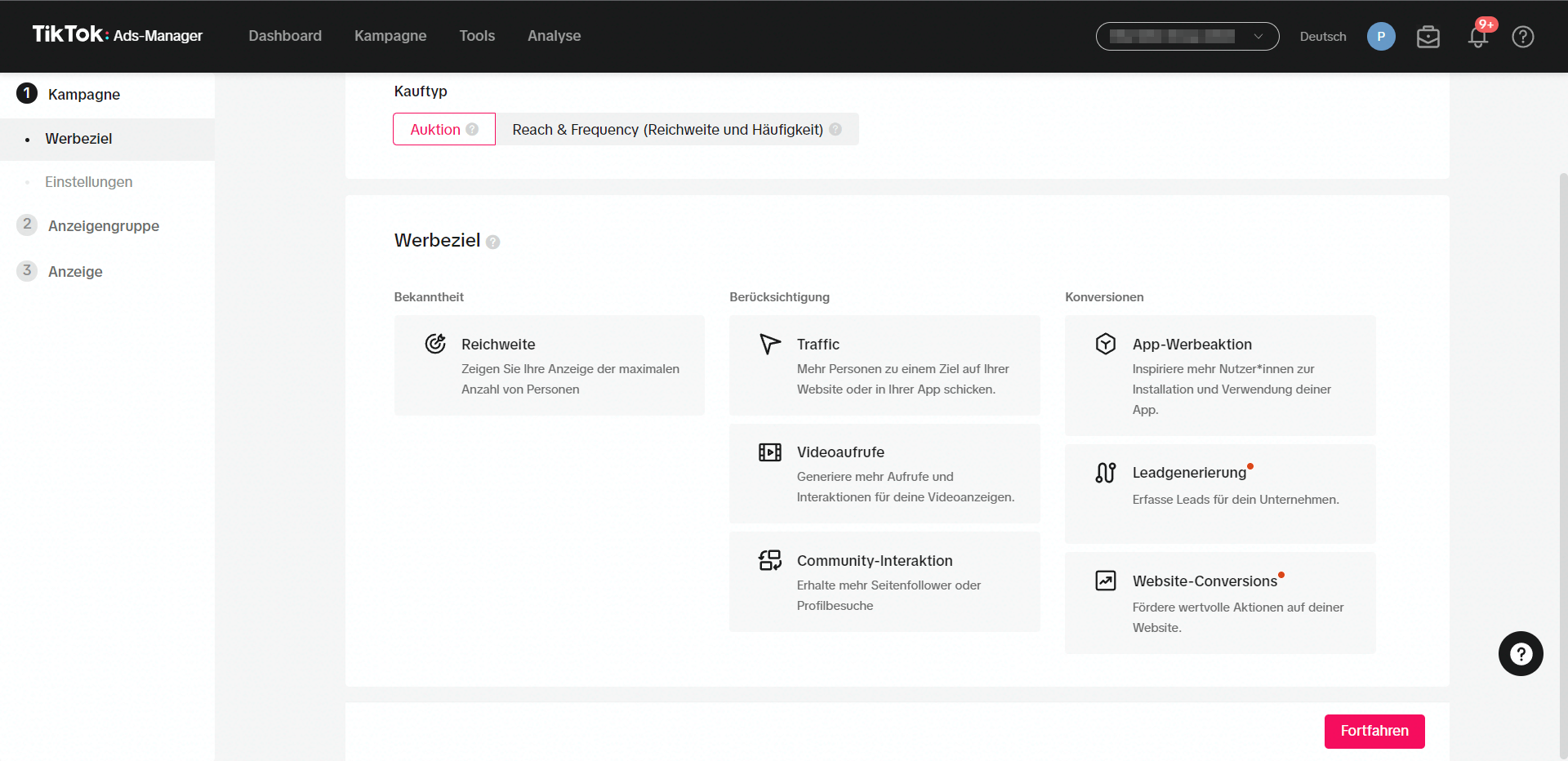
1. Creating a campaign: First, you need to log in to your account. Then look for the "Create ad" option and click on it. You will be asked to choose a campaign objective. This objective should fit your business goals as closely as possible. TikTok offers a wide range of objectives, including "Traffic", "App installs", "Video views" and more. It is important to choose an objective that matches your specific goals in order to maximise the effectiveness of your campaign.
2. Setting the budget: In the next step, you will be asked to set the budget for your campaign. You can set either a daily budget or a lifetime budget for the entire campaign. The minimum budget for a campaign is $500. It is important to set a budget that suits both your financial means and the requirements of your campaign.
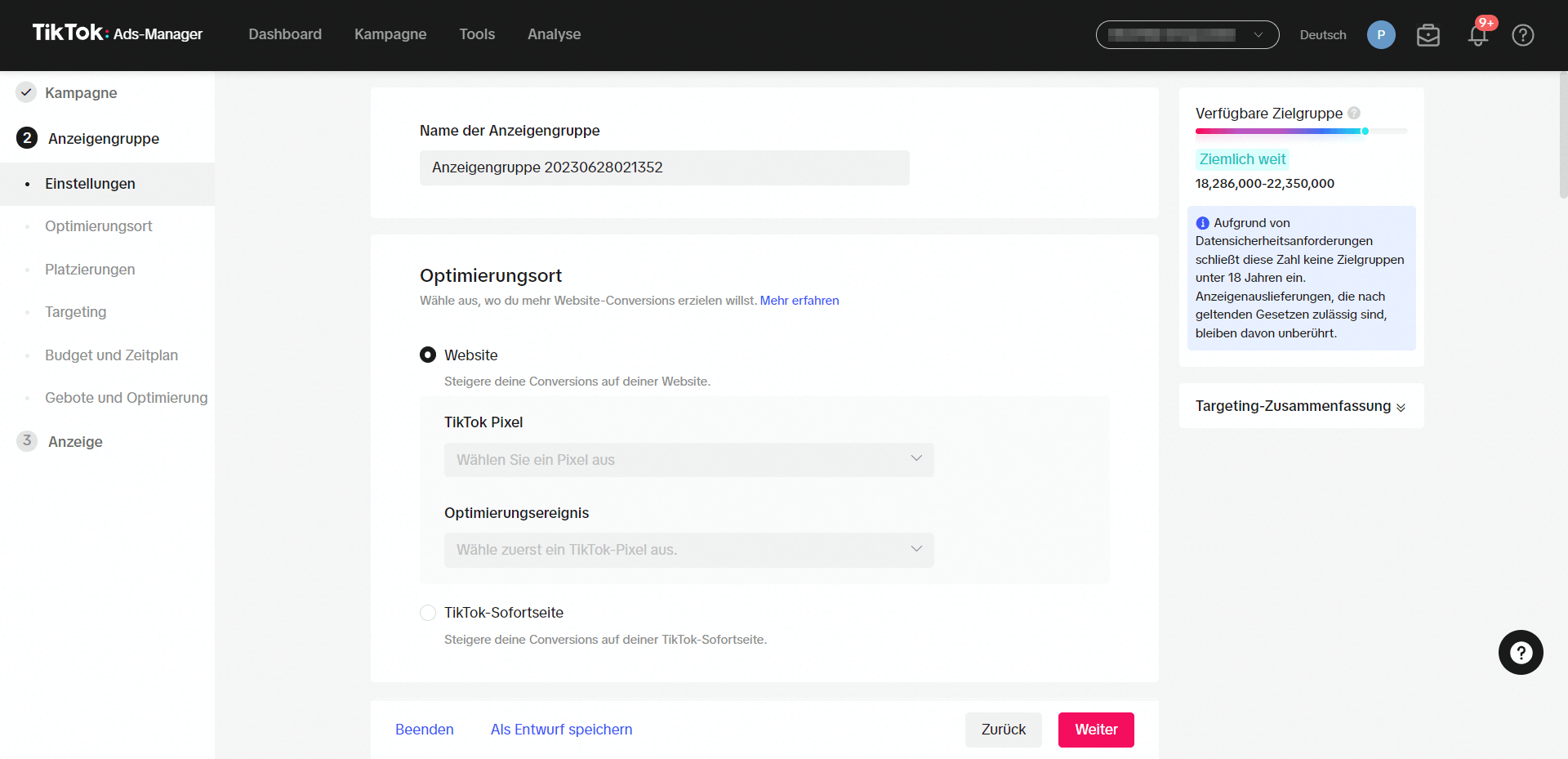
3. Creating an ad group: Once you have set your budget, you can create one or more ad groups. Within each ad group, you can define various aspects such as the audience, ad scheduling, placement and optimisation goal. Creating several ad groups can help you organise your campaign better and test different audiences or strategies.
4. Create your ad: Now it is time to create your ad. You can either upload an existing video or create a new one with TikTok Video Creator. It is important that your video complies with TikTok's guidelines. This means it must not contain any inappropriate or offensive content and must not infringe copyright.
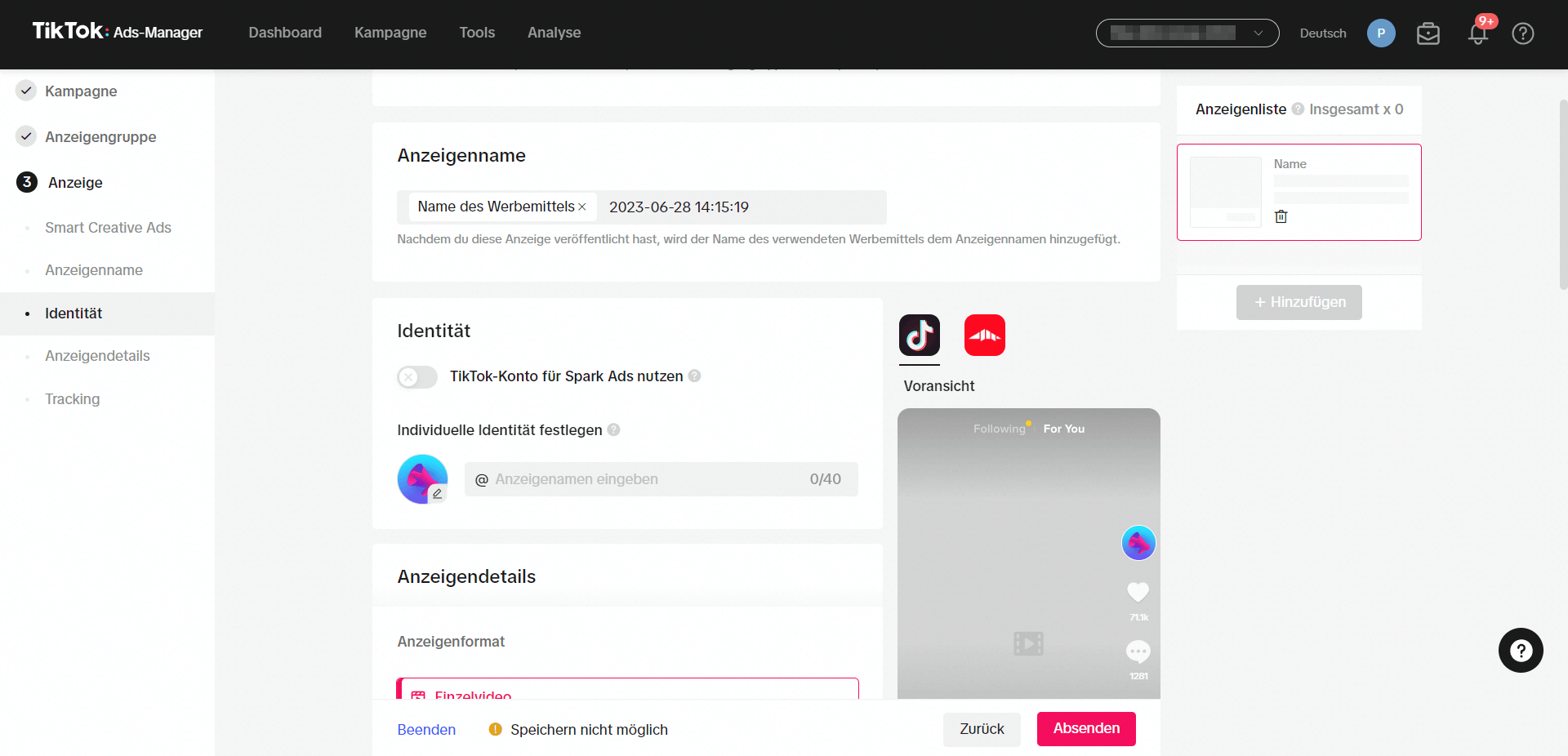
5. Review and launch: Once you have created your ad, you can submit it for review. TikTok will review your ad and approve it if it complies with the guidelines. Once it has been approved, you can launch it. It is important to be patient during this process, as it can take some time for TikTok to review your ad.
6. Monitor and optimise your campaign: After launching your campaign, it is important to monitor its performance and make adjustments where necessary. You can track various metrics such as clicks, impressions, cost per click and so on in your Ads Manager dashboard. It is important to watch for changes in these metrics and adjust your campaign accordingly to maximise its effectiveness.


Was würde 3x mehr
Umsatz für dich bedeuten?
Finde es heraus:
